Setting an Owner Column
One important use for Ultimate Forms: Voting Column that was briefly discussed in another article is the ability to give users the a chance to rank other user submissions. For instance, this can be extremely helpful in an FAQ scenario that we are about to discuss.
Instructions
Example scenario:
For this example, we will build a list named: FAQ Voting
- Add sample items with titles:
- How to reset a laptop password
- Best SharePoint list indexing tips
- How to clear list permissions cache
These represent answers created by different users in your organization.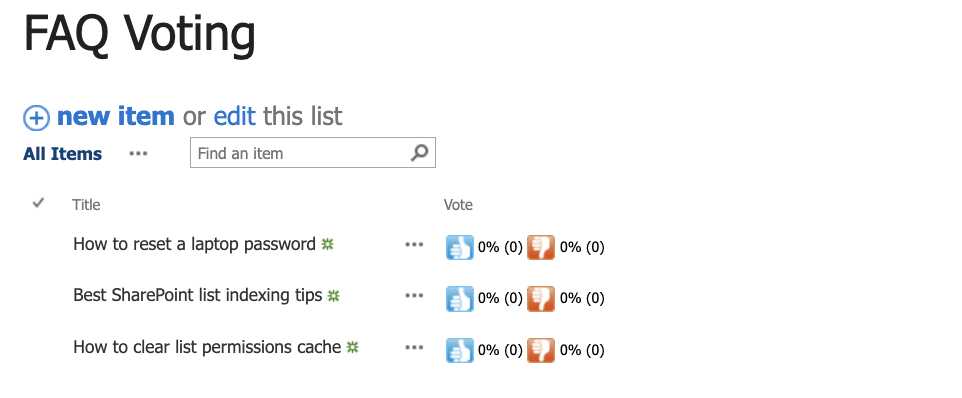
Step 1: Setting the Owner column (On-Premises)
- Go to List Settings
- Open your existing Voting column
- In Owner column settings, choose a Person column that identifies item responsibility
- For our FAQ use, select:
- Created By (This means the owner becomes the person who created or uploaded the list entry/document. It prevents voting bias.)
- Save
- Expected result:
- If the owner tries to vote on their own item, the system shows an error and blocks the vote!
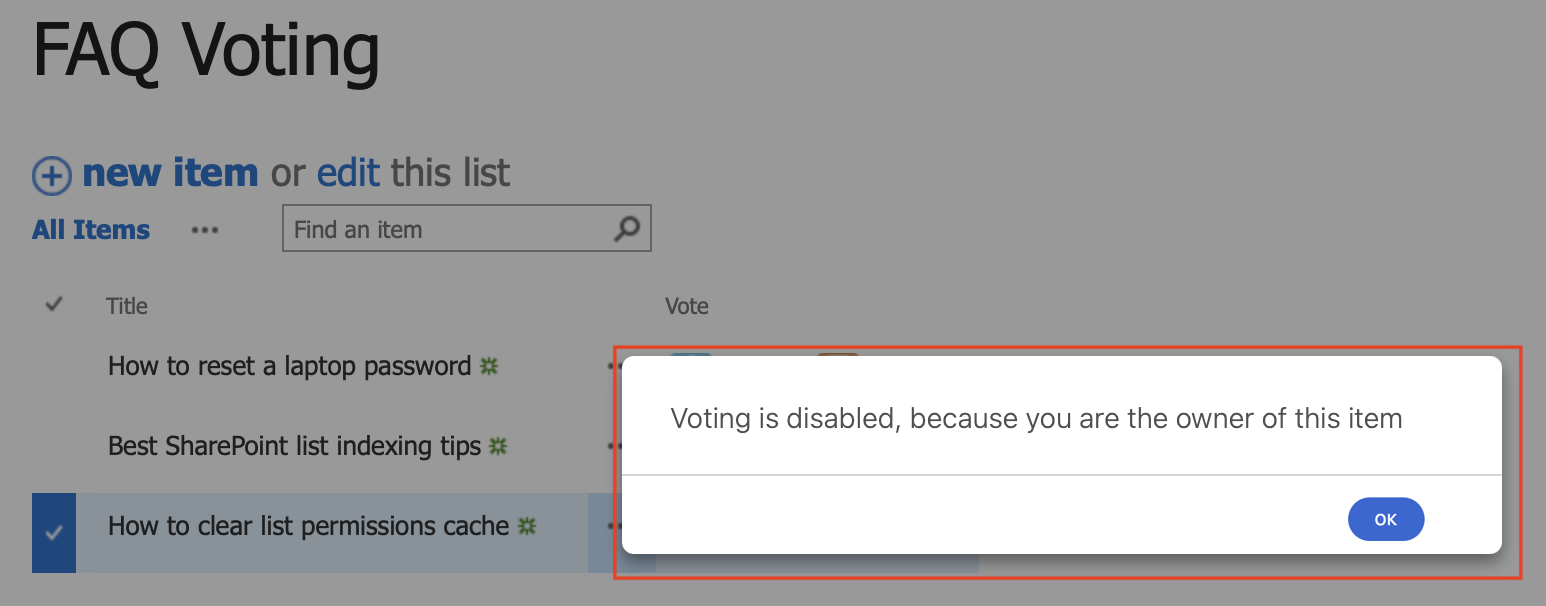
- If the owner tries to vote on their own item, the system shows an error and blocks the vote!
Limiting the ability of an owner to vote on their own document is essential to any successful FAQ library.
Step 2: Setting the Owner column (Microsoft 365)
- Open the FAQ Voting list in SharePoint Online
- Click: Design
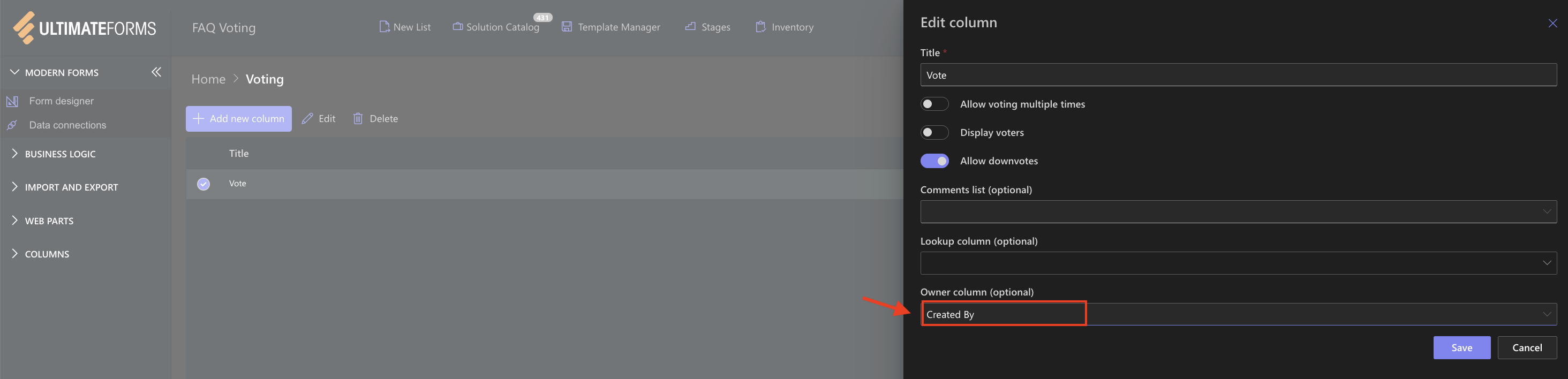
- Open your Voting column settings
- In Owner field settings, select the responsible column:
- Created By
- Save
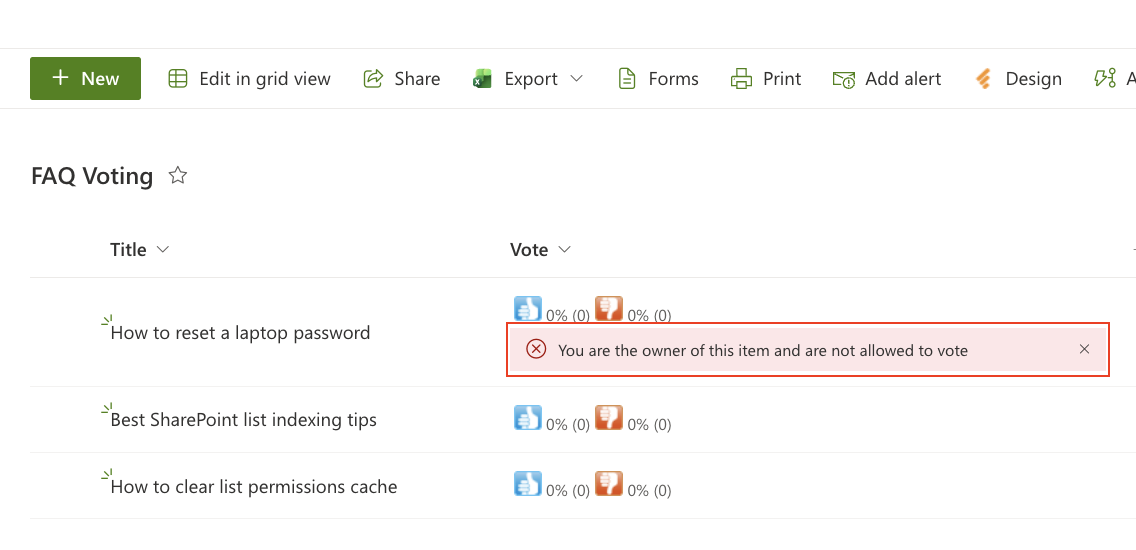
- Expected result:
- Voting icons appear in list views as usual
- The item Owner cannot vote on their own entries
Summary
In this tutorial, we learned how the Owner column helps enforce fair voting, how to assign Created By as the Owner field in On-Prem and Online, and what UX behavior to expect when Owners try to vote on their own items.
Last modified: 12/3/2025 1:06 PM