List Search Filter by View
The Filter by view option allows you to limit which items are available for searching in the Ultimate Forms: List Search web part.
Instead of searching the entire list, List Search can use an existing SharePoint view to define the search scope.
This approach lets you:
- reuse familiar SharePoint views
- keep search results consistent with business rules
- restrict access to items users should not see
- improve usability and performance for large lists
In this tutorial, you will learn how to use Filter by view, and how it works together with Advanced Search.
Instructions
What We Use in This Tutorial:
In this tutorial, we use a Projects list that represents a typical project tracking scenario.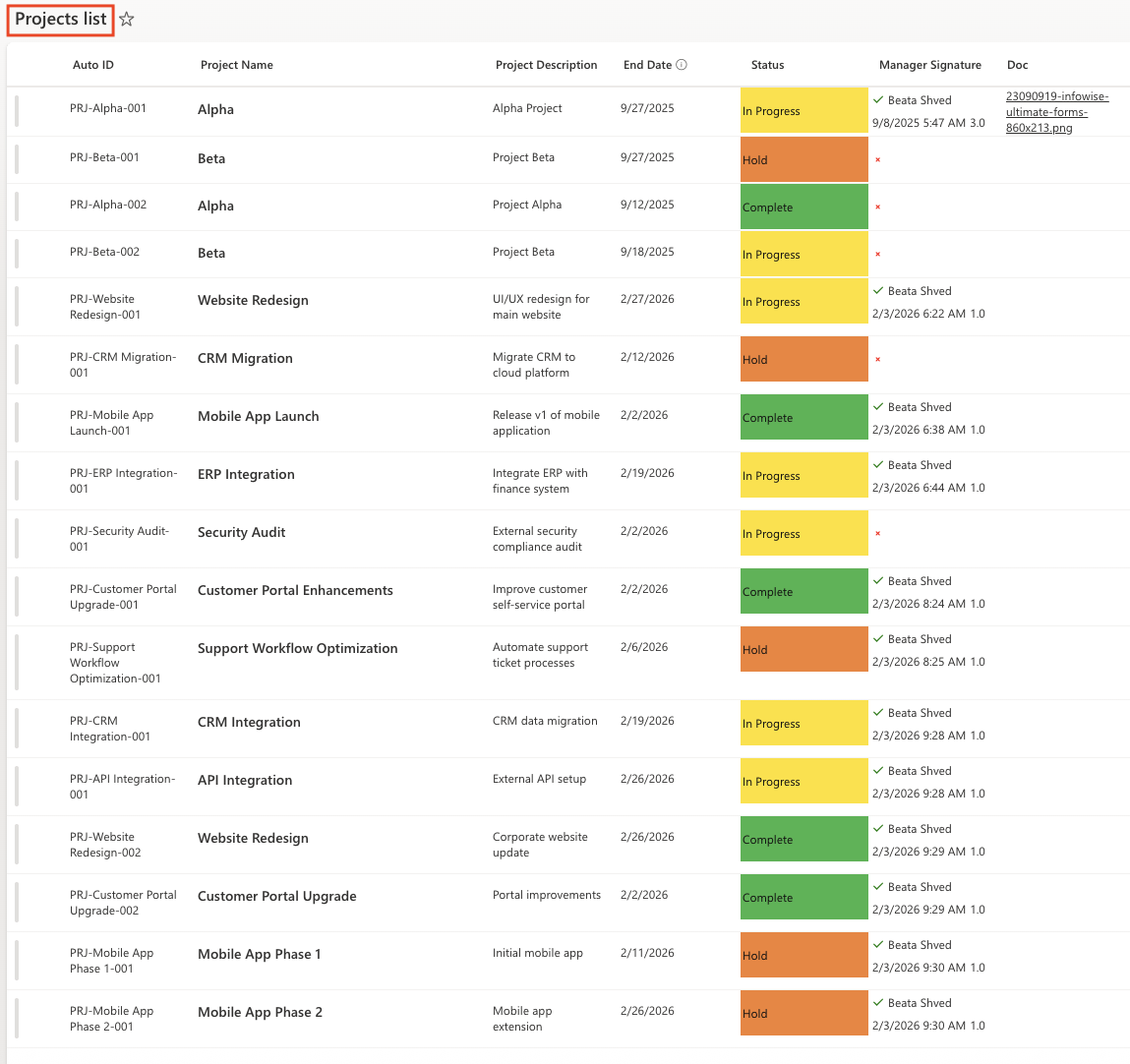
To demonstrate Filter by view, the following SharePoint views are used:
- All Projects – shows all projects in the list
- In Progress Projects – Status = In Progress
- Completed Projects – Status = Complete
- Active Projects – excludes completed projects
- On Hold Projects – Status = Hold
How Filter by View Works?
Filter by view does not replace search conditions. Instead, it defines the scope of the search.
Views decide which items are available for searching, while search conditions decide how users search within those items.
When a view is applied:
- only items included in the view are searchable
- Advanced Search conditions apply within the view scope
- users see results that match the view they are already familiar with
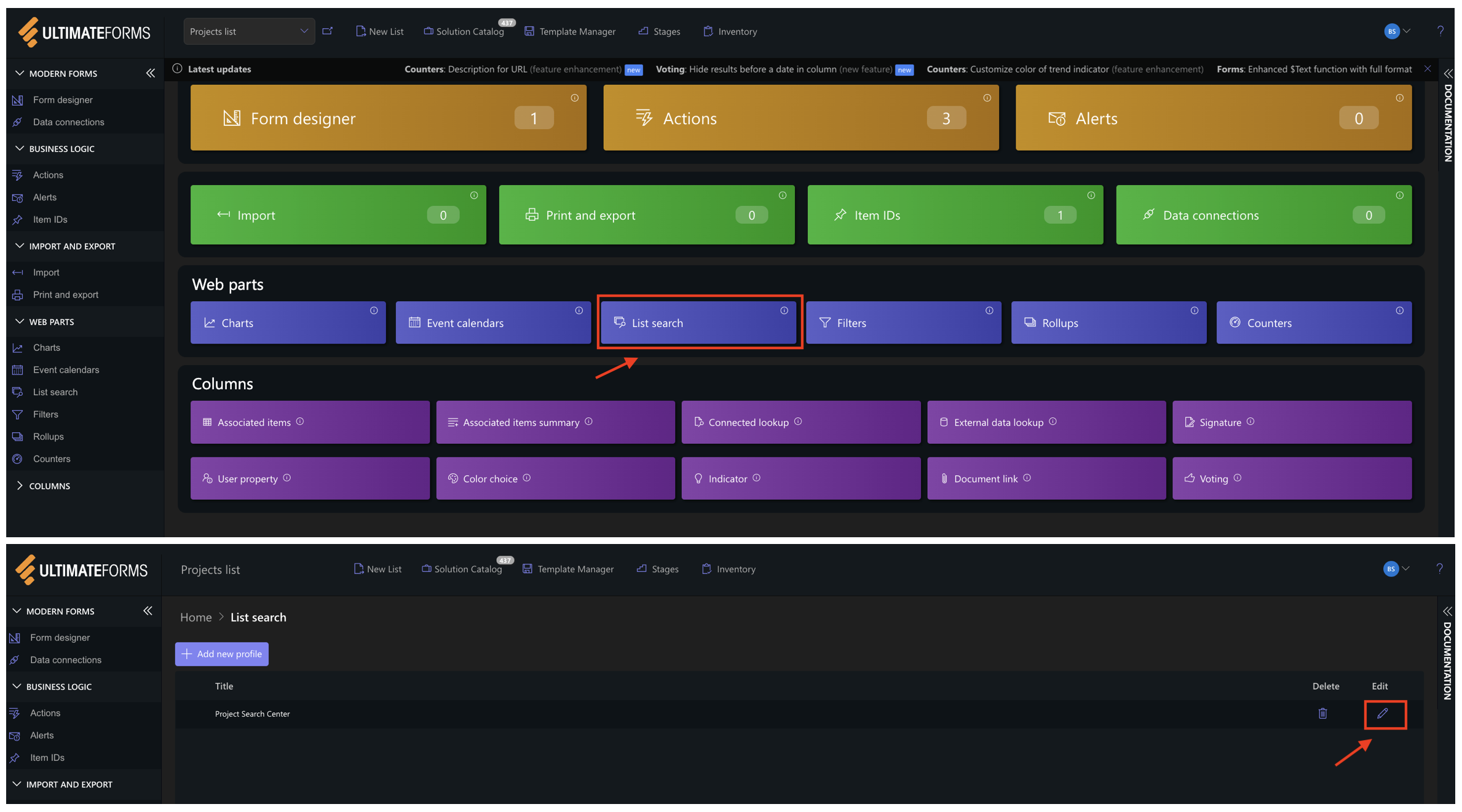
Step 1: Open the List Search Profile
- Open Ultimate Forms Design.
- Under Web Parts, select List Search.
- Open an existing profile or click Add to create a new one.
Step 2: Enable Filter by View
- Enable Filter by view.
- Click Save.
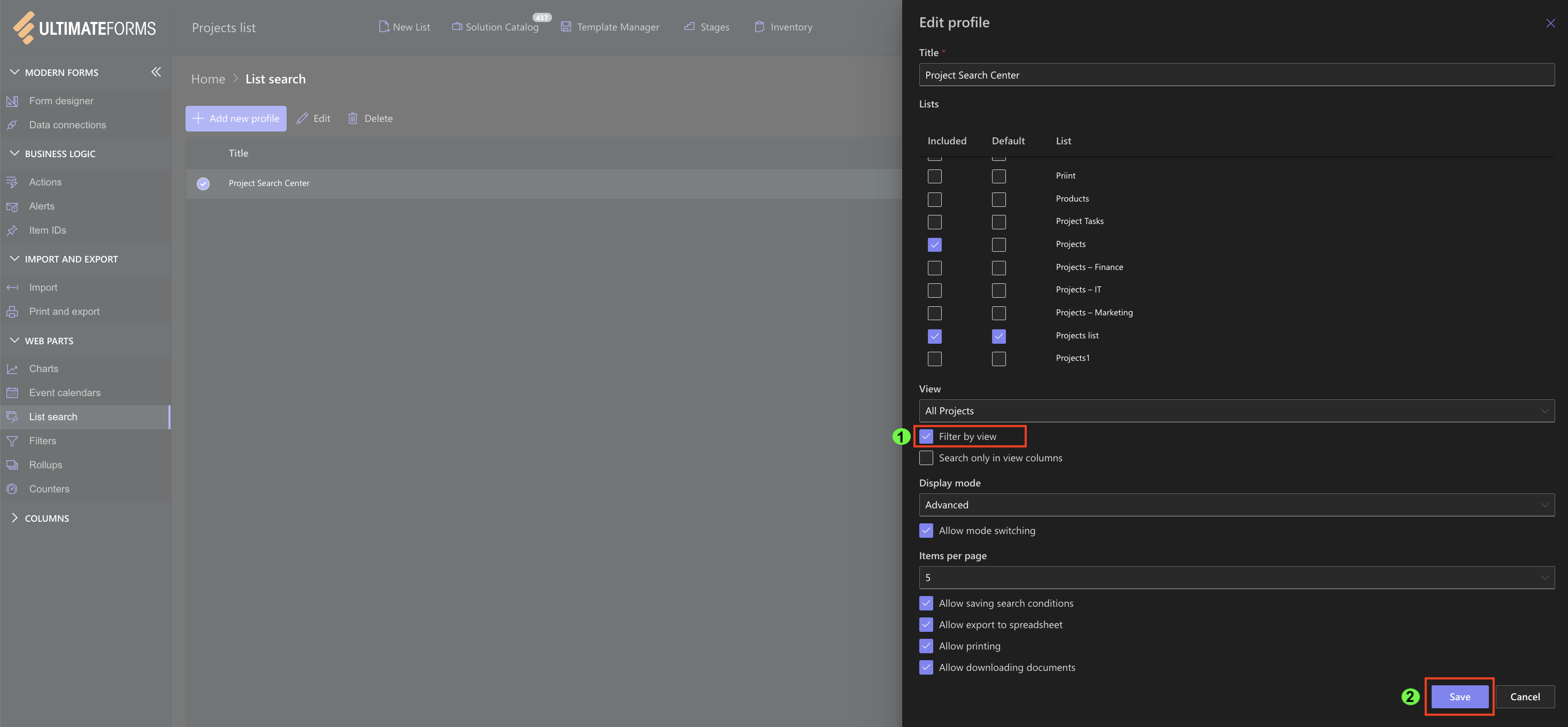
This allows List Search to use SharePoint views as the search scope.
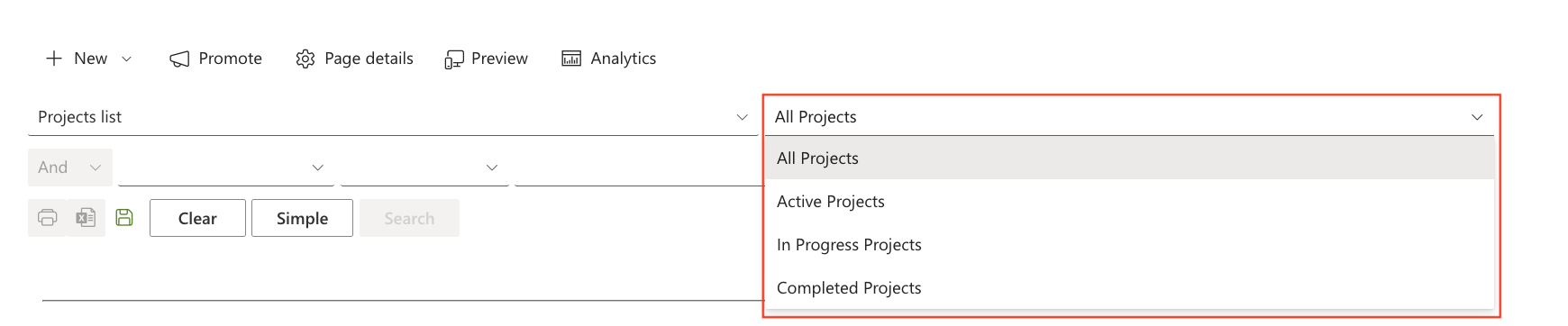
Step 3: Using Filter by View in Advanced Search
- On the page, click Advanced Search
- Open the View selector
You will now see all views created in the Projects list, such as:
- Active Projects
- In Progress Projects
- Completed Projects
- On Hold Projects
Step 4: How This Improves the Search Experience
Instead of searching across all projects, users can now:
- search only within In Progress Projects
- search only completed work
- focus on blocked projects
Example 1: Search only active projects:
- Search: Project Name contains Integration
- View = In Progress Projects
Result:
- ERP Integration
- CRM Integration
- API Integration
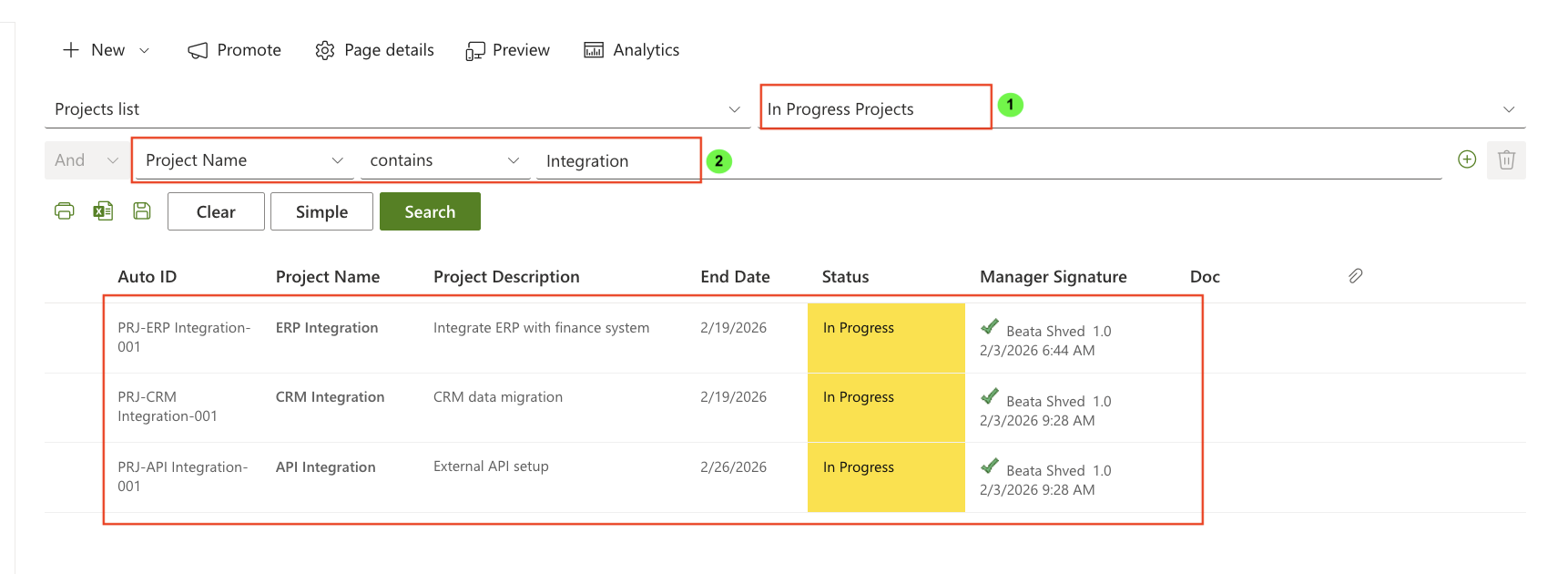
Only projects with Status = In Progress are searched. Completed and On Hold projects are automatically excluded.
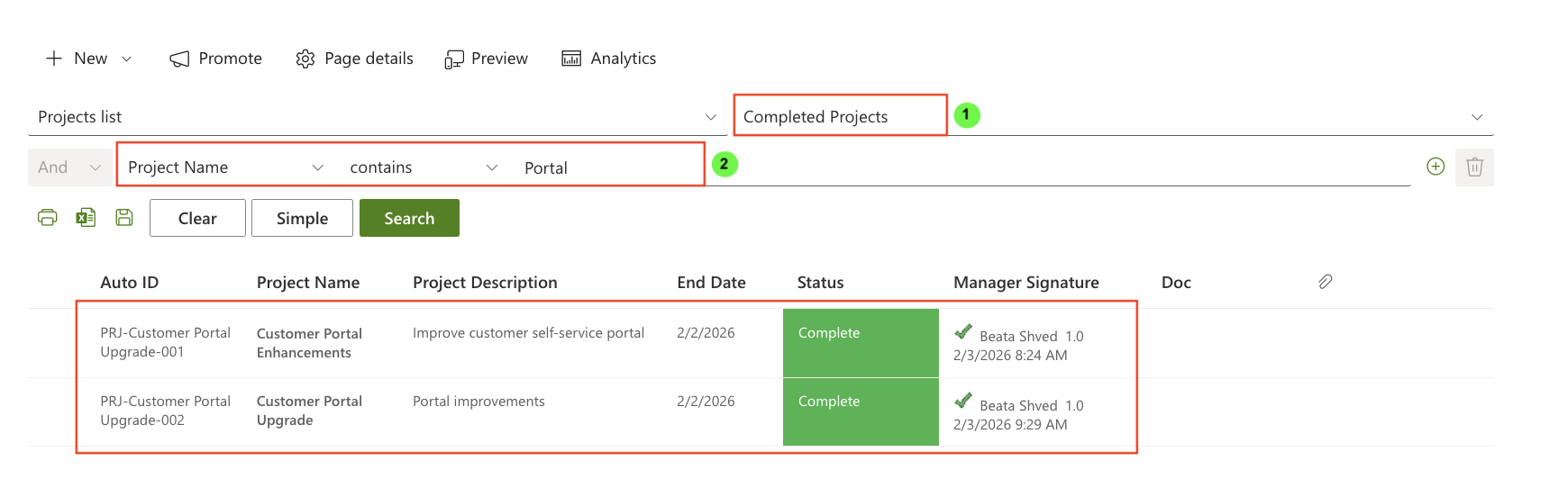
Example 2: Searching Completed Work:
- Search: Project Name contains Portal
- View = Completed Projects
Result:
- Customer Portal Enhancements
- Customer Portal Upgrade
Search Only in View Columns (Optional)
List Search also includes the Search only in view columns option.
When enabled:
- search is restricted to columns included in the selected view
- hidden or excluded columns are not searched
- results become more relevant and predictable
This option works well together with Filter by view, especially for complex lists.
Important Notes
- Filter by view defines search scope, not search logic.
- It should be used to limit which items can be searched.
- Search conditions define how items are searched within that scope.
- Views help keep search results aligned with permissions and business rules.
Summary
In this tutorial, you learned how to use Filter by view in the Ultimate Forms: List Search web part to limit search results using SharePoint views.
You saw how views define the search scope, while search conditions refine results within that scope, and how this approach improves usability, consistency, and trust in search results.