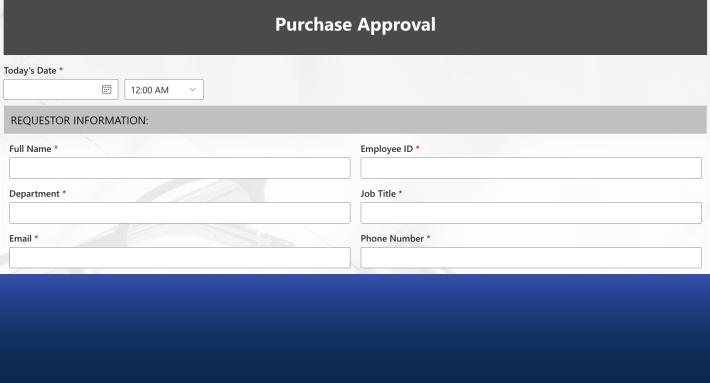
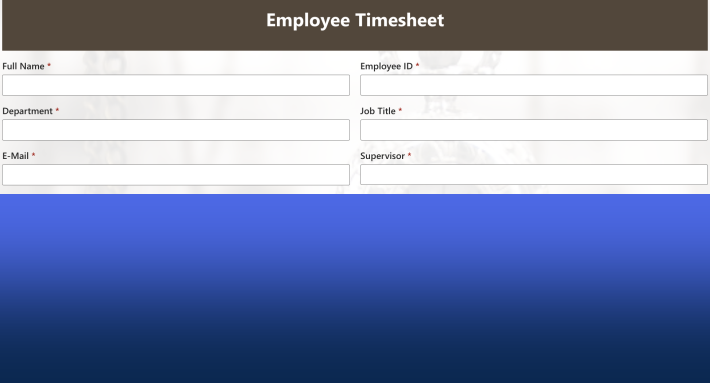
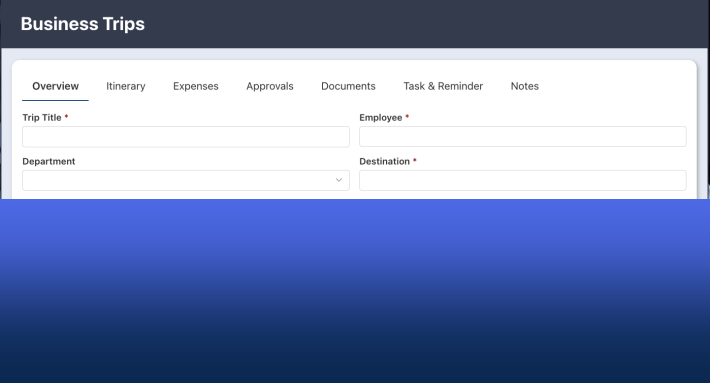
Customer feedback can flow straight into SharePoint: a branded public form your customers fill with no account and no login, submissions landing as list items, alerts routing each entry to the right team, and views and charts turning the stream into insight. Ultimate Forms provides every piece, external public forms for the collection, a ready-made template for the head start, alerts and actions for the routing, and this guide builds the system end to end: the form, the notifications, the triage, and the analysis.
Why feedback systems fail before they start
Most organizations do not lack feedback; they lack a place for it to land. The survey tool holds some, the shared inbox holds more, the complaints live in whoever answered the phone, and the praise evaporates entirely. Each channel has an owner but no process, so the feedback that arrives hardest, the angry customer, the brilliant suggestion, gets the same treatment as the rest: read once, filed nowhere, acted on if someone remembers.
The fix is structural: one form, one list, one process. The form must be public, customers will not create accounts to give you their opinion, which is exactly what external forms provide: a unique URL, no login, submissions written directly into your list while the list itself stays invisible. From the moment of submission, the feedback is a SharePoint item, and everything your organization can do to items, route, assign, escalate, chart, report, applies to the customer's voice.
Step one: the list and the form
Start with the repository. Create a list named Customer Feedback in your site:
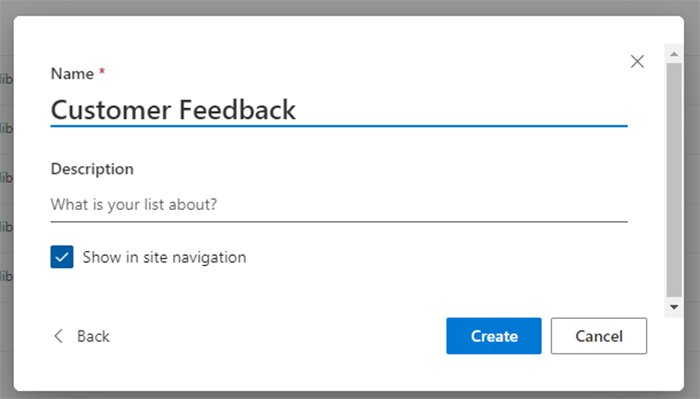
Then, instead of designing from scratch, take the head start: open the list, click Design, and open the Solution Catalog, the library of prebuilt solutions for common processes. Search for the customer feedback template:
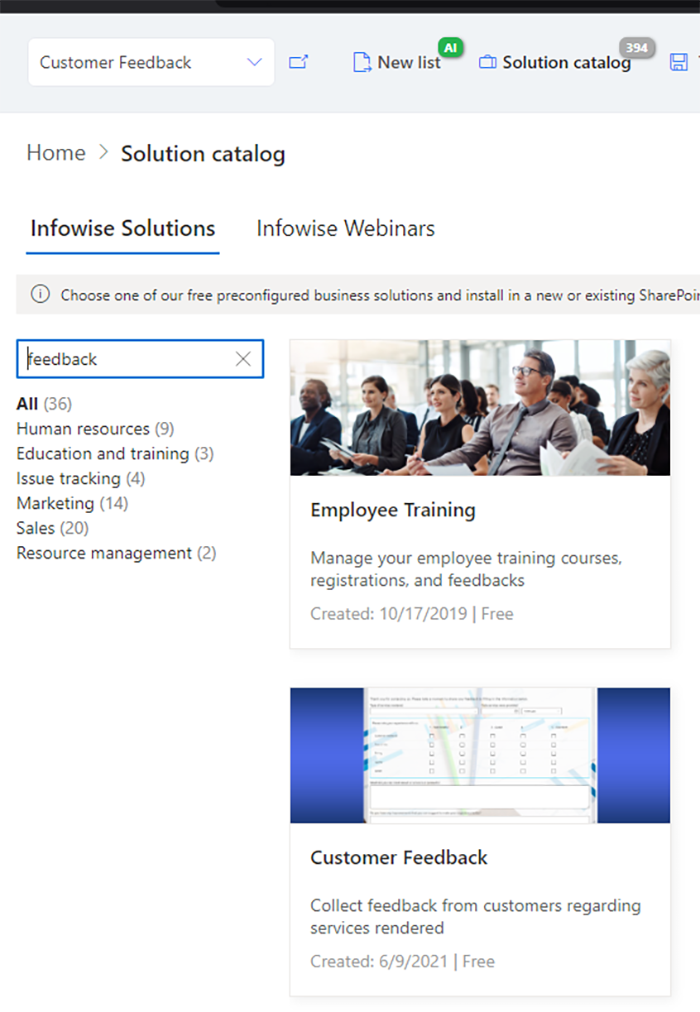
Choose the installation target, directly into the current site for a single-team setup, or as a new subsite when the feedback process warrants isolation.
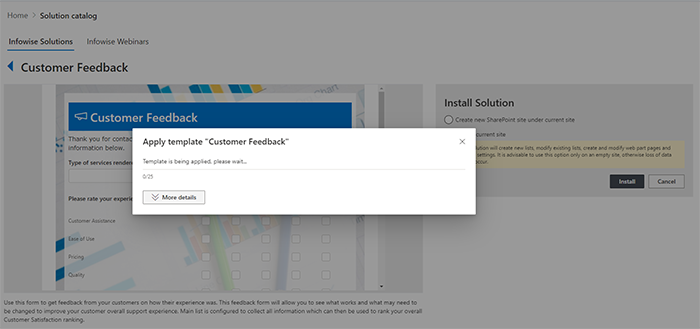
Next open the installed form in Form Designer for customization. Adjust the columns to your business, your product list, your feedback types, your rating scale, tune the layout, and set the validation that keeps entries complete. Keep the form short, feedback is a gift given in spare moments, and every extra question returns fewer gifts, and finish with a Thank You page that acknowledges the submission and says what happens to it.
Then publish it to the world: enable External form, and the feedback form exists at its public URL, ready for the website footer, the email signature, the receipt, and the QR code on the counter, every placement the hosting guide covers, with CAPTCHA filtering the bots. Customers tap, type, and submit, with the mobile rendering handling the phone screens most feedback arrives from.
Step two: alerts that put feedback in front of people
Feedback nobody sees is feedback nobody acts on, so the routing comes next. In Design, open Alerts and create one for new items: when feedback arrives, the notification goes out, carrying the customer's name, the feedback type, and the direct link, the item's own values filling the template.
Then split the stream by type with conditional alerts: complaints to Customer Support, suggestions to the Product team, sales queries to Sales or Operations. Each team receives exactly its slice, written with the usual message craft, and nobody triages a shared inbox. For teams living in Teams, the same alerts deliver there, and for feedback that warrants acknowledgment, a second alert to the customer's own email closes the loop politely.
Step three: triage and sentiment
Raw feedback benefits from one human judgment: how does this read? Add a Sentiment choice column, Positive, Neutral, Negative, set by the reviewer during triage.
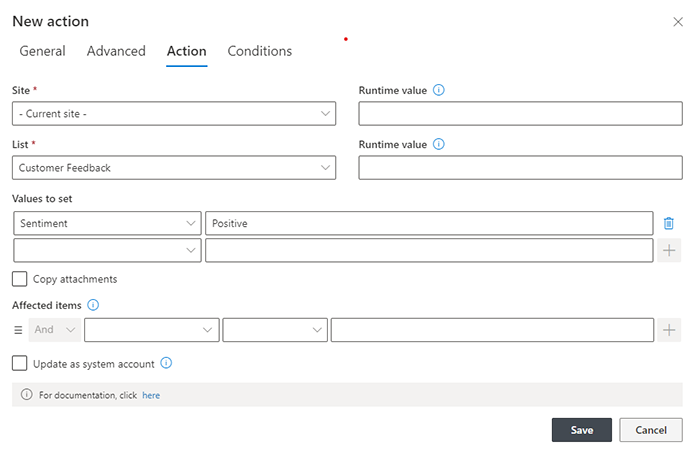
Keep the column off the public form, permission rules make it internal-only, and let actions respond to the judgment: Positive notifies Marketing, a testimonial or case study may be waiting; Negative escalates to Customer Service for immediate follow-up, with an after-change condition firing the escalation once, at the moment the sentiment is set; Neutral routes to Product for the improvement signal it usually carries. A status column alongside, New, In Review, Actioned, Closed, turns the feedback list into a worked queue rather than an archive, and the premature-closure guards from the validation toolkit apply if the process warrants them.
Step four: from entries to insight
The analysis layer is where the SharePoint-native approach pays off over the survey-tool world: the data is already in the list, so reporting is configuration. Color-coded views make sentiment and status visible at a glance. Charts aggregate feedback by type, product, and month, and KPIs on the team dashboard track volume and negative-sentiment share. A scheduled report mails the month's feedback summary as a branded PDF, generated and sent by itself, and the quarter's product review starts from data instead of anecdotes, with every claim one click from the verbatim customer words behind it.
The loop this closes deserves naming, because it is the actual product of the build. The customer speaks once, into one form. The right team hears it within a minute. The judgment is recorded, the action is logged, the trend is charted, and when the same complaint arrives for the fifth time, the list knows, even if no individual does. Feedback programs fail by leaking; this one is a pipe.
Designing the questions themselves
The system's quality ceiling is set by the form's questions, so three question disciplines pay for themselves. Ask for one judgment, not five: a single overall rating plus a free-text "tell us more" outperforms a matrix of scales, because customers finish it, and the free text carries the insight the scales flatten. Make the type column honest to your routing: the dropdown's options should be the categories your teams actually divide work by, complaint, suggestion, question, praise, because the type drives the alerts, and a category nobody owns is a leak. And always capture the optional email with a plain statement of what it is for, "only if you would like a reply", since the follow-up capabilities below depend on having it, and customers give it willingly when the purpose is stated and narrow.
Two refinements worth adding
The feedback-to-resolution bridge. Negative feedback often is a support case wearing a different hat. An action can create the ticket in your issue tracking list directly from the feedback item, carrying the customer's details across, so the apology and the fix travel together.
The follow-up link. For feedback that invites dialogue, the personal edit link technique lets the customer add to their own submission, answering your clarifying question without accounts or email archaeology, one record per customer, one link per record.
Both are afternoon additions, and both convert the form from a suggestion box into the front end of a relationship. The suggestion box collected opinions; the pipe collects them, answers them, and remembers them, and customers notice the difference faster than any satisfaction metric will show it.
Frequently asked questions
Add your comment