You can run a Power Automate flow the moment something specific happens in a SharePoint form, and there are two reliable ways to do it. The first calls the flow directly: an Ultimate Forms action of type Call application or service posts to a flow built on the "When a HTTP request is received" trigger, passing field values as parameters. The second lets the flow detect the change itself: a "When an item or file is modified" trigger combined with the Get changes for an item block, which identifies exactly which fields changed. The first is more direct but requires a premium Power Automate license; the second runs on standard licensing but takes more care to configure efficiently. This article walks through both, screenshot by screenshot, and ends with a simple rule for choosing.
Why combine Ultimate Forms and Power Automate at all
Power Automate is a powerful workflow tool and a vital part of the Microsoft 365 ecosystem, and many of our customers run it alongside Ultimate Forms in the same solutions. The division of labor is natural. Everything that lives inside SharePoint, form logic, field updates, notifications, approvals, documents, is faster to build and easier to maintain as Ultimate Forms actions, for the reasons compared in Ultimate Forms Actions vs Power Automate. But Power Automate brings hundreds of connectors into services far beyond SharePoint, and when a process needs to post to Teams via a specific connector, create a record in a system only Power Automate reaches, or join an automation estate the organization already runs on flows, the right move is not to choose one platform but to connect them.
The connection point is precision: you rarely want a flow to run on every modification of an item. You want it when this field changes, or when this button is clicked, and both methods below deliver exactly that.
Method 1: Call the flow directly with an HTTP request
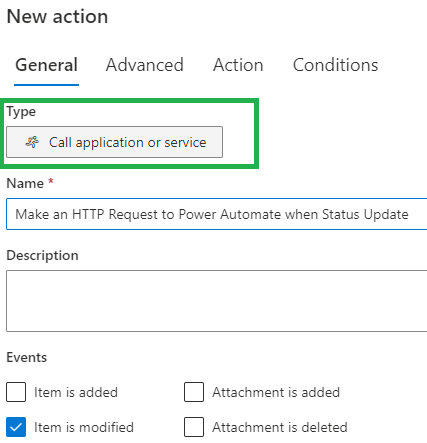
The direct route uses the Call application or service action type in Ultimate Forms. Start the action like this:
On the Power Automate side, create a new flow using the "When a HTTP request is received" trigger. One licensing note before you build: this trigger is a premium capability, so the flow's creator needs an appropriate paid Power Automate plan; check Microsoft's current pricing for the details, as plan names and terms change.
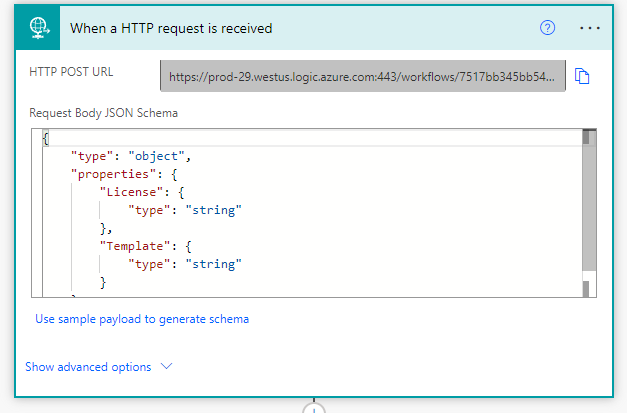
The trigger accepts a JSON schema describing the parameters you will pass. Here is an example in which two parameters, License and Template, both text fields in our SharePoint list, are passed to the flow:
{
    "type": "object",
    "properties": {
        "License": {
            "type": "string"
        },
        "Template": {
            "type": "string"
        }
    }
}
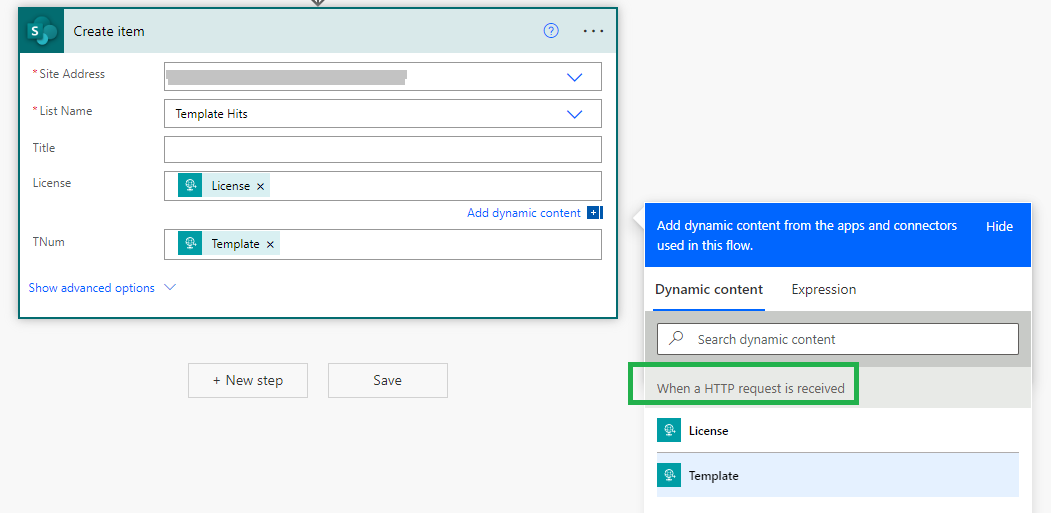
Build your own schema according to your field names and types; the pattern stays the same. Once the flow is triggered, the passed values are available to every subsequent block:
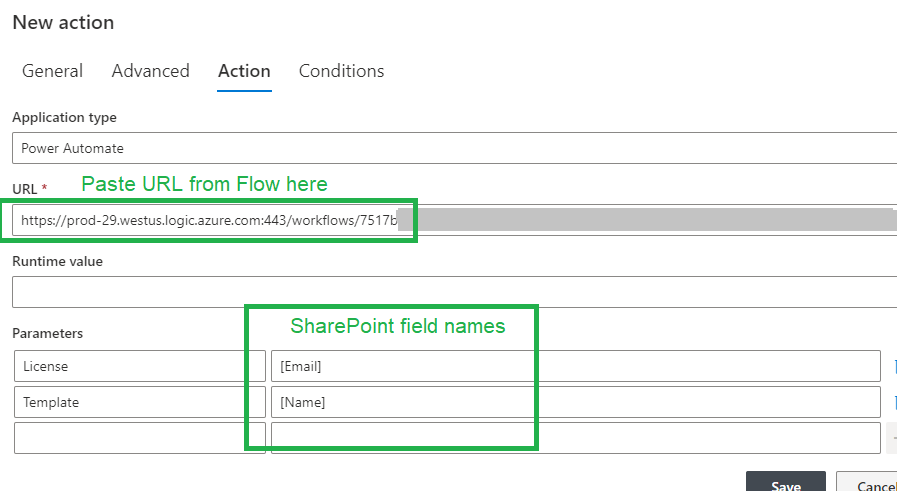
Back in Ultimate Forms, complete the action's configuration: select Power Automate as the Application type, copy the HTTP POST URL from the flow into the action, and map the parameters:
Finally, and this is where the precision lives, adjust the action's conditions to the exact trigger you want. The action's full condition machinery applies, so "status changed to Approved and amount above 5,000" is as easy to express as "item created," and the flow fires only then, already carrying the values it needs. No polling, no filtering inside the flow, no wasted runs.
Method 2: Let the flow detect the change
The second method keeps everything on standard licensing by putting the detection logic in the flow itself. It relies on conditions defined in your flow and does not require the premium plan.
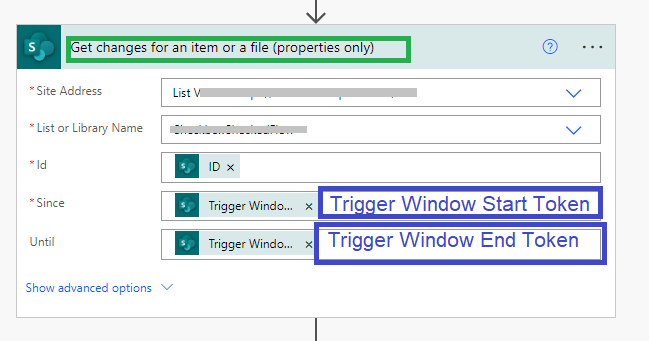
Create a flow with the "When an item or file is modified" trigger. As its second block, add Get changes for an item or a file, and set its last two fields to Trigger Window Start Token and Trigger Window End Token, which scopes the comparison to exactly the change that fired the trigger:
Now the flow can check whether the specific update you care about occurred. In the example, a Yes/No field is examined using its "Has changed" property:
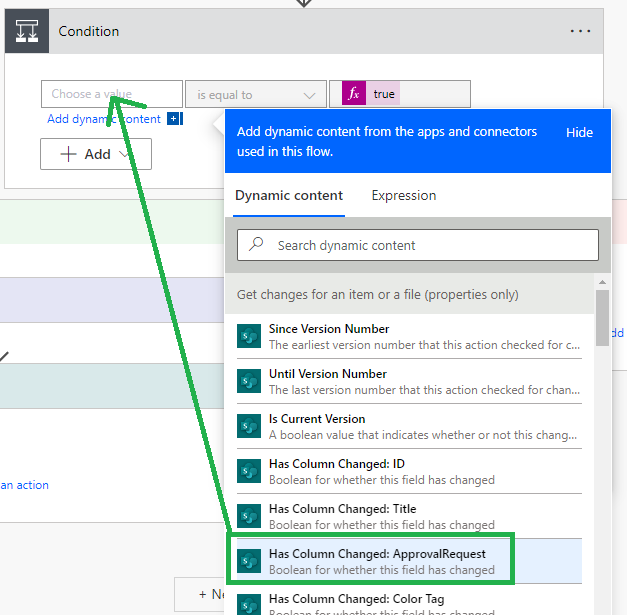
From here, define whatever conditions the scenario needs. A particularly clean pattern combines this method with Ultimate Forms on the form side: create a Yes/No column, say Approval Request, make it read-only in the form, and set it with a form button or an Ultimate Forms action created just for this purpose. The user clicks a button; the field flips; the flow detects the flip. The form stays clean, users never touch the trigger field directly, and the flow's condition is unambiguous.
One efficiency recommendation that deserves bold in any tenant: add a Trigger Condition to the flow so it runs only when the field has the value you care about. Without it, the flow executes on every modification of every item and discards most runs after evaluating them, which is noisy in the run history and wasteful against your quota. With it, runs that would not pass simply never start. A more detailed walkthrough of this method is demonstrated in this video on the SharePoint Smart YouTube channel.
Choosing between the two
The rule of thumb is short. Choose the HTTP request method when the premium license is available and you want the cleanest architecture: the action decides when to fire, the payload carries the data, and the flow contains no detection logic at all, it just does its job. It is also the natural choice when one flow serves several lists or when the trigger logic is complex, since Ultimate Forms conditions express complexity more comfortably than trigger filters.
Choose the change-detection method when licensing is the constraint, or when the flow logically belongs to the list it watches. Budget the extra care for trigger conditions, and use the dedicated-field pattern to keep detection reliable.
And keep perspective on how much belongs in flows at all. If the work being triggered is itself SharePoint work, updating items, sending notifications, generating documents, it is usually simpler as an Ultimate Forms action end to end, with Power Automate reserved for the steps that genuinely need its connectors. The same integration story runs in both directions, too: Ultimate Forms can call REST applications directly and submit to external applications, which covers many scenarios people assume require a flow. The platforms are better together precisely because each can stay in its lane.
Frequently asked questions
Add your comment