Forms
Actions
Alerts
Associated Items
Connected Lookup
Print
Import
Signature
External Data Lookup
Calendar
Rollups
Charts
Counters
List Search
Filters
Item IDs
Color Choice
User Property
Document Link
Voting
Stay in the know
Get helpful videos
Add cascading lookup dropdowns to SharePoint: filter city by country, unlimited levels, no code. A drop-in upgrade for the built-in lookup column.

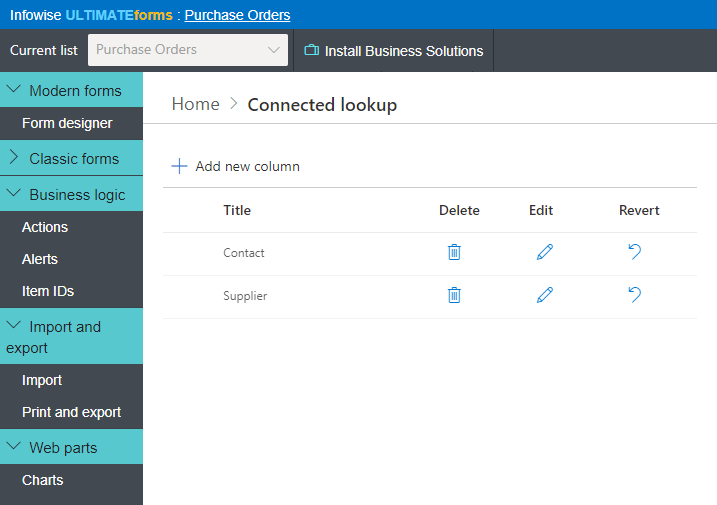
Ultimate Forms: Connected Lookup adds cascading dropdowns to SharePoint lists and document libraries. Pick a country and the city dropdown shows only that country's cities; pick a category and only its products appear. It works as a drop-in replacement for the built-in lookup column, supports unlimited cascading levels, and is configured in the browser with no code. Users need no training because it looks and behaves exactly like the lookup they already know, minus the scrolling.
Cascading dropdowns are one of the most requested SharePoint form capabilities, and one of the simplest to add.
Why unfiltered lookups produce bad data
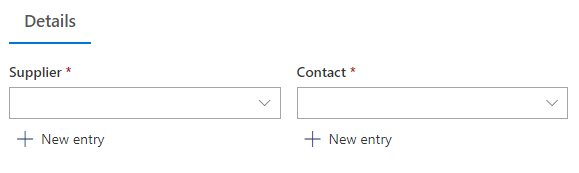
A native lookup shows every value in the source list, every time. Five hundred cities in one alphabetical dropdown means users scroll, guess, and pick the wrong Springfield. Selections that make no sense together, a city in the wrong country, a product from the wrong category, sail straight into your data, and every report downstream inherits the mess.Connected Lookup fixes the problem at the point of entry: each dropdown shows only the values that fit what was already selected. Fewer options, faster entry, and combinations that are correct by construction.
What Connected Lookup can do
Cascade as deep as your data goes
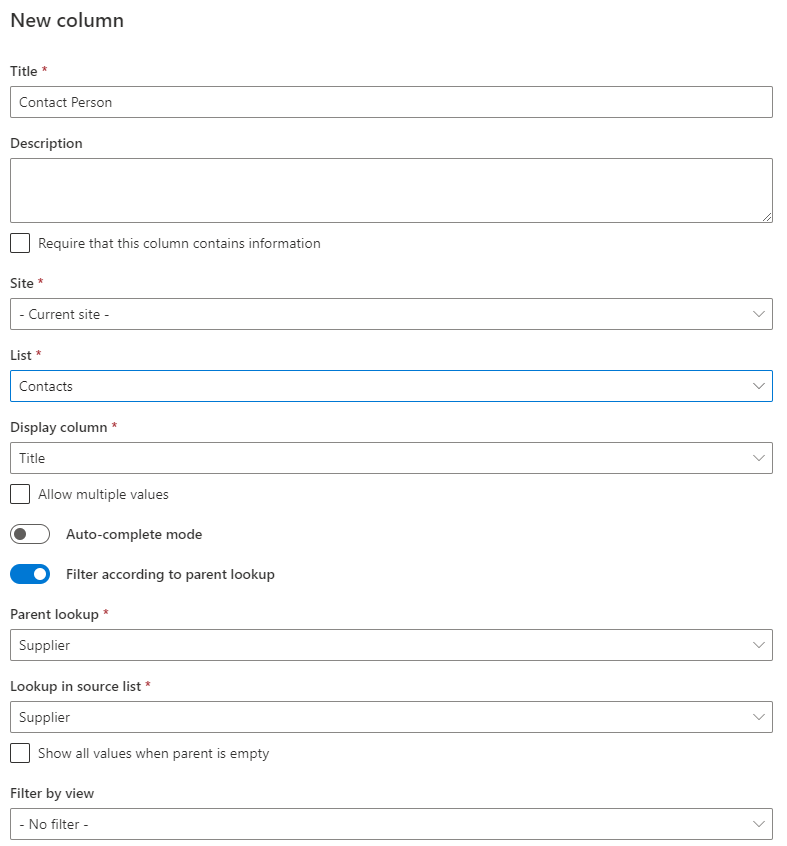
Chain as many levels as you need: country to region to city to site to building. Each parent can have unlimited children and each child its own children. Two levels cover most scenarios; nothing stops you at ten.Replace the built-in lookup, keep the experience
The column looks and behaves like a standard SharePoint lookup, operates as either a cascading or a regular lookup, and converts to and from built-in lookup columns. Adopting it on an existing list is a column swap, not a rebuild, and abandoning it (you won't) is just as clean.Never lose a value mid-entry
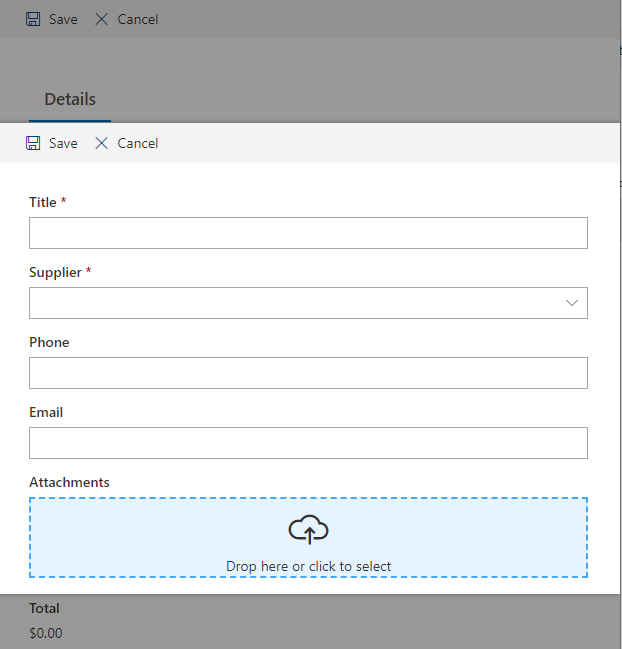
When the value a user needs is missing from the source list, they add it on the spot, inline or through a popup, without abandoning the form. The new value lands in the source list properly, so the next user finds it waiting.Filter and relate exactly how your data demands
Single-to-single, single-to-multiple, multiple-to-single, and multiple-to-multiple relationships are all supported. Limit available values by a SharePoint view, add one or more extra filters, sort by view order, and enable auto-complete for long lists. Additional linked columns from the source list fill in automatically, so choosing a product can populate its price and SKU in the same motion.Build once, reuse everywhere
Site column and content type support means you define the master-detail relationship once at the root site and reuse it across the entire site collection. Consistency across sites is configured, not policed.Compared with Native SharePoint
| Ultimate Forms | Native SharePoint | |
|---|---|---|
| Complete replacement for the built-in lookup, with additional features | ✓ |
|
| Filter lookup field according to another lookup field | ✓ |
|
| Unlimited number of levels of cascading filtering | ✓ |
|
| Allows entering new values directly from the column | ✓ |
|
| Allows entering new values through a popup window | ✓ |
|
| Supports site columns and content types | ✓ |
|
| Supports single-single, single-multi, multi-single and multi-multi selections | ✓ |
|
| Optionally filter values by view | ✓ |
|
| Optionally sort values by view | ✓ |
|
| Convert to and from regular lookup columns | ✓ |
|
| Create and manage additional columns from the source list | ✓ |
|
| Limit available values by one or more additional filter | ✓ |
|
| Supports English, German, French, Spanish and Russian | ✓ |
✓
|
Where teams use it
Country and city selectors on every request form. Category to product to model chains in sales quotes. Department to team routing in help desks. Building to room in reservation systems. Combined with Forms rules and validation, the dropdown chain becomes part of a form that guides users end to end. Many of the 450+ templates in the Solution Catalog use Connected Lookup out of the box.Frequently asked questions
Q: Can I create cascading dropdowns in SharePoint without code?
A: Yes. Connected Lookup adds cascading dropdowns as a column type configured entirely in the browser. No code, no Power Apps, no JSON formatting.
Q: How many cascading levels are supported?
A: Unlimited. Chain as many lookup columns as your data model needs, with each level filtering the next.
Q: Can I filter one lookup by another lookup's selection?
A: Yes. That is the core function: each dropdown shows only values related to the selection above it, with optional extra filters and view-based filtering on top.
Q: Can users add a missing value while filling the form?
A: Yes. New values can be entered inline or via a popup and are saved to the source list without leaving the current form.
Q: Can I convert my existing lookup columns?
A: Yes. Connected Lookup converts to and from built-in lookup columns, so existing lists upgrade in place.
Q: Does it work across my whole site collection?
A: Yes. With site columns and content types, you define the relationship once and reuse it throughout the site collection.
Screenshots