An action in Ultimate Forms can run not just once, but once per value in a range: for every date between a start and end date, or for every number between two bounds. That is what execution loops do, and on each pass the current value is handed to the action, ready to be used in value assignments, inside expressions and functions, or in conditions. The classic payoff: create a project, and a full schedule of weekly checkpoint tasks generates itself, one task per week between the project's start and end dates, each with its own due date. This walkthrough builds exactly that, and along the way covers the two configuration subtleties that trip up first-time loop builders.
Why loops matter in no-code automation
The Actions component provides an approachable alternative to traditional workflow engines like Power Automate: pick an action type, configure when it runs and what it does, save, done. A wide selection of action types covers automation inside and outside SharePoint, and non-developers genuinely operate it.
But "do this once when that happens" only covers half of real processes. The other half is inherently plural: a project needs a task per week, a contract needs a payment record per installment, an order needs a line per unit, an inspection program needs an entry per month. In code, that is a for-loop, and its absence is where no-code tools usually send users back to developers. Loops in Actions close that gap: a single action, or a whole group of actions, executes repeatedly across a range of numbers or dates, with the current value available to every pass. The loop value is what makes the repetition intelligent, each created task can carry its week's date, not a copy of the same one, because the action reads the value of the pass it is running in.
The build: weekly checkpoint tasks per project
The example automates a familiar chore: when a project is created, generate a set of weekly checkpoint tasks between its start and end dates, with the number of tasks determined by the project's length. Longer project, more checkpoints, automatically.
Set up the lists
Create a list called Projects. Click the Design button on the list view to enter Ultimate Forms, open Form Designer, create a new form, and add three columns with the New Column button:
- Start Date, a date column.
- End Date, a date column.
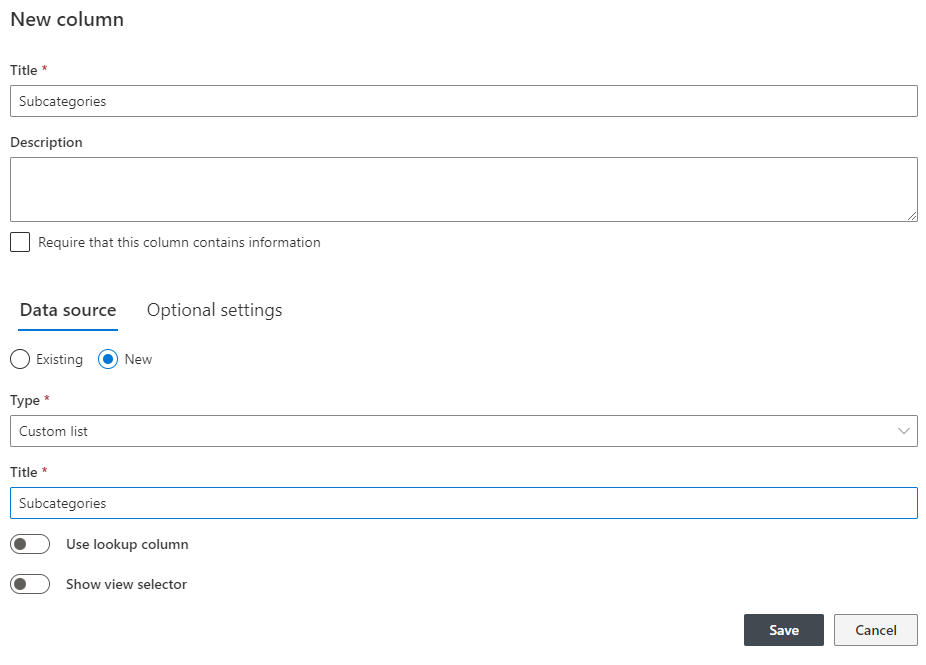
- Tasks, an Associated Items column, the specialized column type that creates a parent-child relationship between two lists.
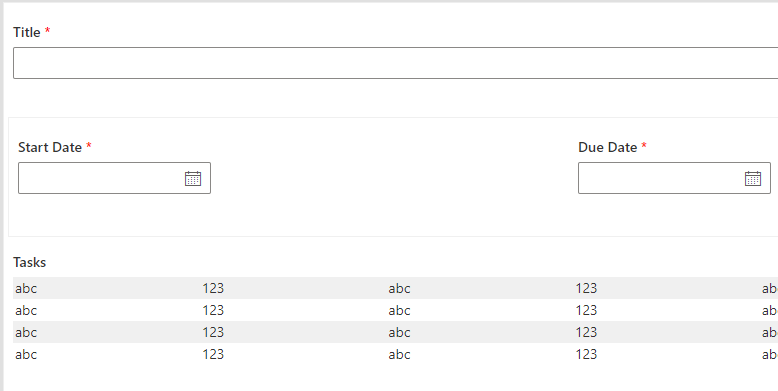
In the Associated Items column's Data source section, choose the option to create a new list, leave the type as Custom list, title it Tasks, and save; the Tasks list is created for you. Then drag the three columns from the gallery onto the canvas, here with a container placing both dates on one row:
Finally, add a Due Date column to the new Tasks list; the loop will fill it.
Here is how the fully designed form should look like in Form Designer:
The Create action
Create a new Create list items action, and make the first unusual move: remove all events from the first tab. This action will never fire on its own; the loop group we build next will invoke it, and stripping its events is what prevents it from also running independently every time something happens to a project. Actions orchestrated by a group should have no triggers of their own, a principle worth remembering beyond this example.
On the Action tab, set List to Tasks, since that is where items will be created, and map the Values to set:
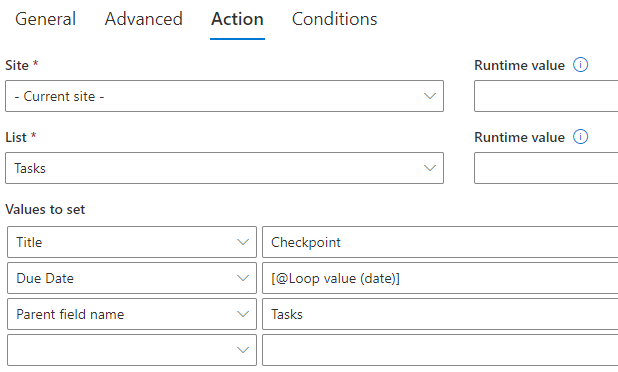
Two details here. First, Parent field name is set to Tasks, the name of the Associated Items column in the parent list, which tells the action to establish the parent-child relationship as it creates each item; the generated tasks will belong to their project, visible inside its form. Second, a sequencing quirk you should expect: Due Date cannot be mapped yet, because the loop value it will hold does not exist until the loop is configured. Save the action as is and return to it later; this two-pass configuration is normal, not a mistake.
The Action Group and its loop
Create a new Action Group. Groups execute several actions in one go, and they are also where loop configuration lives. On the first tab, leave only the New event, so the whole construction triggers when a project is created. On the Action tab, add the Create action to the group's list (click the plus icon), and the loop settings section appears:
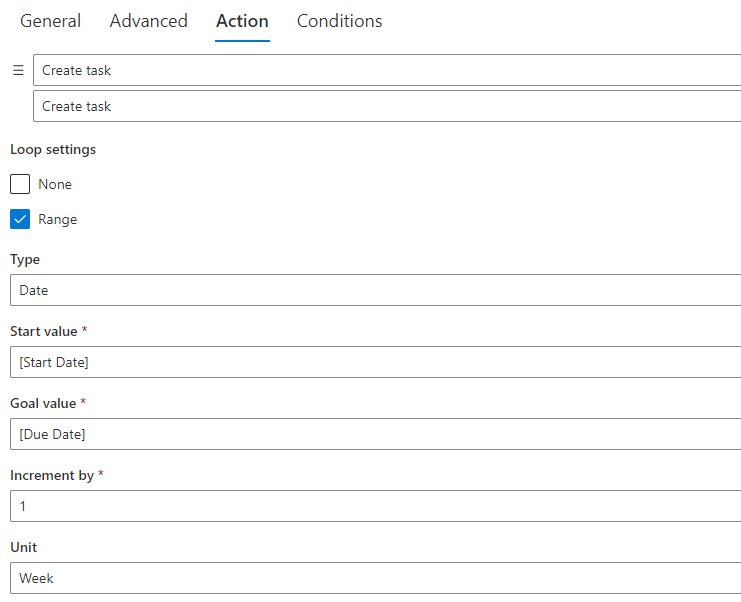
Configure the loop across the dates between Start Date and End Date at a weekly interval, and the group now executes its actions once per week in that span. (The original build labels the columns Start Date and End Date; keep the loop bound to those same columns for consistency.)
Close the loop, literally
With the group saved, return to the Create action: the loop value is now available, and you can map it to Due Date. Each pass of the loop creates one task whose due date is that pass's date, which is the whole trick in one sentence.
Test it
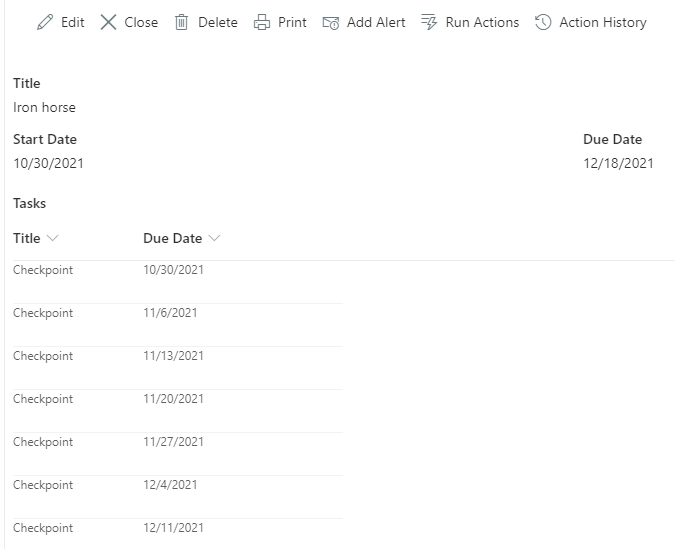
Create a new project with a start and end date, and the weekly tasks appear, linked to the project, each dated to its own week:
Patterns worth stealing
The weekly-tasks build generalizes along both loop types. Date loops produce schedules of every kind: monthly compliance reviews between a policy's effective and expiry dates, per-day records for a booking's duration, recurring inspection entries across a maintenance season. Number loops produce counted sets: an installment record per payment in a plan, a numbered certificate per attendee count, a placeholder item per unit ordered. In every case the discipline is the same three moves: an eventless inner action that does the per-item work, a group that owns the trigger and the loop, and the loop value mapped wherever the pass's identity belongs, a date column, part of a title, a sequence number in an expression.
Loops also compose with the rest of the platform. The generated tasks are ordinary items, so alerts can remind assignees as each due date approaches, and summary columns on the project can count and roll up the children the loop created. For the group mechanism itself, see Discover the Power of Action Groups; for a related generation scenario, Automate Project Task Generation in SharePoint; and for recurring execution on a schedule rather than a range, Hourly/Daily/Weekly/Monthly Actions.
One button configured, one list created, and a category of manual setup work, the kind that used to be someone's first hour on every new project, stops existing.
Frequently asked questions
Add your comment