SharePoint content can translate itself as it moves. The Copy List Items action in Ultimate Forms carries built-in automatic translation: as it copies items or documents to their destination, it translates text column values, and for document libraries the documents themselves, Word, Excel, PowerPoint, and PDF, into the target language, powered by Google Cloud Translation or Microsoft Azure Cognitive Services. One action, and the French folder fills with French documents whose columns read in French too. This guide covers the capability, the one-time Google Cloud setup it requires, the action configuration, and where translated copies earn their keep. For the engine behind it, see the automation hub.
Translation as a copying problem
Multilingual content in SharePoint is usually framed as a translation problem, and then solved badly: documents emailed to translators or pasted into web translators, returned days later, re-uploaded by hand, with the metadata never translated at all. Framing it as a copying problem changes the economics. Organizations already copy content between places, the published folder, the regional site, the archive, and the Copy List Items action already automates that movement, between folders, lists, sites, and even site collections. Translation rides along: enable it on the copy, pick the target language, and the arriving copy is already in the destination audience's language, columns included.
The division of labor is honest about what machines do well. The translation engines, Google's and Microsoft's, are the same services behind the industry's machine translation, strong for operational content: instructions, descriptions, specifications, notices. Content where nuance is legal or brand-critical still deserves a human pass, and the pattern supports that too, the machine translation as the instant first draft in the destination folder, the reviewer's touch as the final step.
Both providers are paid services requiring a payment profile, though small monthly volumes may fall within the free tier. The demo below uses Google Cloud Translation; Azure Cognitive Services works as the alternative provider.
The one-time setup: Google Cloud
The action needs credentials to call the translation service, and creating them is a one-time, fifteen-minute walk through the Google Cloud Console. Log in, and create a project (any name works; note the Project ID, it is needed later):

Open the project's Enabled APIs & Services and click Enable APIs and Services:

Search for "translation":

Choose Cloud Translation API:

And enable it:

If billing is not yet enabled on the account, the console prompts for it here, translation is pay-as-you-go, with pricing under the Advanced section of Google's price list:

Next, the credentials. Open Credentials in the left menu:

Create a Service Account via Create Credentials:

Click Create and Continue, then grant the account the Cloud Translation API User role, which is what authorizes it to call the service:

With the service account listed, open Manage Keys under Actions:

Add a new key:
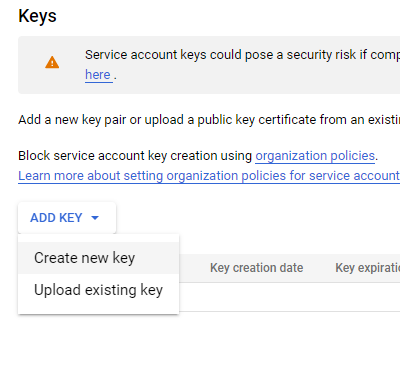
And create it in JSON format. A text file downloads; keep it safe, it is the credential the action will use:

That completes the Google side, permanently: every translation action in the tenant can use the same project and key. Two housekeeping habits are worth adopting at this moment rather than later. Store the JSON key file where credentials belong, a secrets vault or your admin team's protected store, not a mailbox or an open document library, since whoever holds the key can spend against the billing account. And consider a budget alert on the Google project while you are in the console, so the first month's translation volume reports itself instead of surprising the invoice.
The action: one toggle, two fields, one language
On the list or document library holding the source content, click Design, open Actions, and create a Copy List Items action, configured as any copy: source, destination (the French folder, the regional site's library), and trigger, manual in the demo, though item events and schedules serve the automated flows.
Then the translation settings: toggle Enable automatic translation on, enter the Project ID from the Google project, paste the contents of the downloaded JSON key file into the credentials field, and select the target language:

Save, and the action is live. The demo's version runs manually and places French copies into a French folder.
Seeing it work
Run the action, from the command bar in the manual case:

The French folder now holds the copy, and the text columns arrived translated, the Title reads in French in the list view:

And the document itself opens in French, formatting intact:

Seconds per document, no human in the loop, and the same run handles one item or a filtered batch. The first test is worth doing with a document you can judge, a procedure in a language someone on the team reads, because seeing a correct translation with the formatting intact is what converts the skeptics who have only ever seen copy-paste translations mangle a layout.
Where translated copies earn their keep
The multilingual policy library. HR policies, safety procedures, and SOPs maintained in one master library, with per-language folders or regional site libraries filled by translation actions. The master stays the single source of truth; the copies keep the workforce reading in their own language, and a re-run refreshes the translations when the master changes.
The regional rollout. Product descriptions, announcements, and documentation copied to each region's site in its language, one action per language, all triggered by the same event: the item reaching Approved, guarded by an after-change condition so publication, not every edit, does the translating. Five languages means five actions sharing one trigger, which reads exactly as the policy does.
The inbound funnel. Content arriving in foreign languages, imported emails, partner submissions, external form attachments, copied into the working list in the team's language, so triage never waits on translation.
The review pipeline. For nuance-critical content, the action feeds a human workflow: the machine translation lands in a Draft Translations folder, an alert notifies the regional reviewer, and an approval moves the vetted copy to the published folder. The machine does the hours; the human does the judgment.
Two operational notes keep the pattern tidy. Costs track volume, so trigger translations on the transitions that matter rather than on every save, and let the free-tier threshold cover the pilot. And treat the translated copies as generated artifacts: when the source changes, re-run the action rather than editing the copy, the same source-of-truth discipline that governs any generated document. Forms themselves, labels, messages, and buttons, have their own multilingual mechanism; the translation action covers the content, and together they make a solution genuinely bilingual, interface and data both.
Frequently asked questions
Add your comment