Free text can categorize itself. The AI Analyze function in Ultimate Forms reads a piece of text, an email body, a ticket description, a form comment, and sets a Choice or Lookup column to the most suitable of its existing options, automatically. It works anywhere functions work, in import profiles, actions, and dynamic rules on forms, which means every record entering your lists can arrive already tagged, triaged, and ready to route. This article explains how the function decides, walks a complete demo that imports emails and assigns their topics on arrival, and covers the configuration habits that make the AI's picks consistently right.
The categorization gap
Every list has them: the columns that make data useful, Category, Topic, Department, Type, and the quiet reality that humans fill them badly. The person submitting a ticket knows their problem, not your taxonomy, so they guess, pick the first option, or default to Other, and the person importing records at volume doesn't classify at all. Yet everything downstream leans on those columns: views filter by them, routing rules branch on them, dashboards count them. A process's intelligence is only as good as its worst-tagged item.
The information needed to categorize correctly is almost always present, it's just in the free text, where structured tools can't reach it. That is precisely the gap AI closes, and Ultimate Forms includes an array of AI-based functions built on the latest Azure OpenAI GPT models to close it. One privacy point up front, because it is the first question every organization asks: your information is fully encrypted in transit to and from the AI engine, and under no circumstances is it used to train the model, per the Microsoft Azure privacy statement.
How Analyze decides
The design choice that makes the function trustworthy is constraint. Analyze does not freely invent labels for your text; it automatically retrieves the options from the target Choice or Lookup column's settings and selects the most suitable among them. The AI is choosing from your taxonomy, not improvising its own, so the output is always a value your views, rules, and reports already understand. Three refinements complete the behavior: if the column allows multiple values, the engine may return more than one; if a Choice column permits type-in values, the engine can generate a brand-new value when it genuinely fits the text better than every existing option, an escape hatch that doubles as a taxonomy-improvement signal; and because the function is a function, it plugs in wherever functions are accepted, dynamic rules, actions, import mappings, and beyond.
One rule to remember: $Analyze must be mapped to Choice or Lookup columns only. It classifies against option sets; it is not a general text generator, and it won't work mapped elsewhere.
The demo: emails that file themselves
The walkthrough sets up an import profile that pulls emails into a SharePoint list and assigns each one's Topic on the way in, the unattended, high-volume scenario where auto-categorization shines brightest.
Create the list
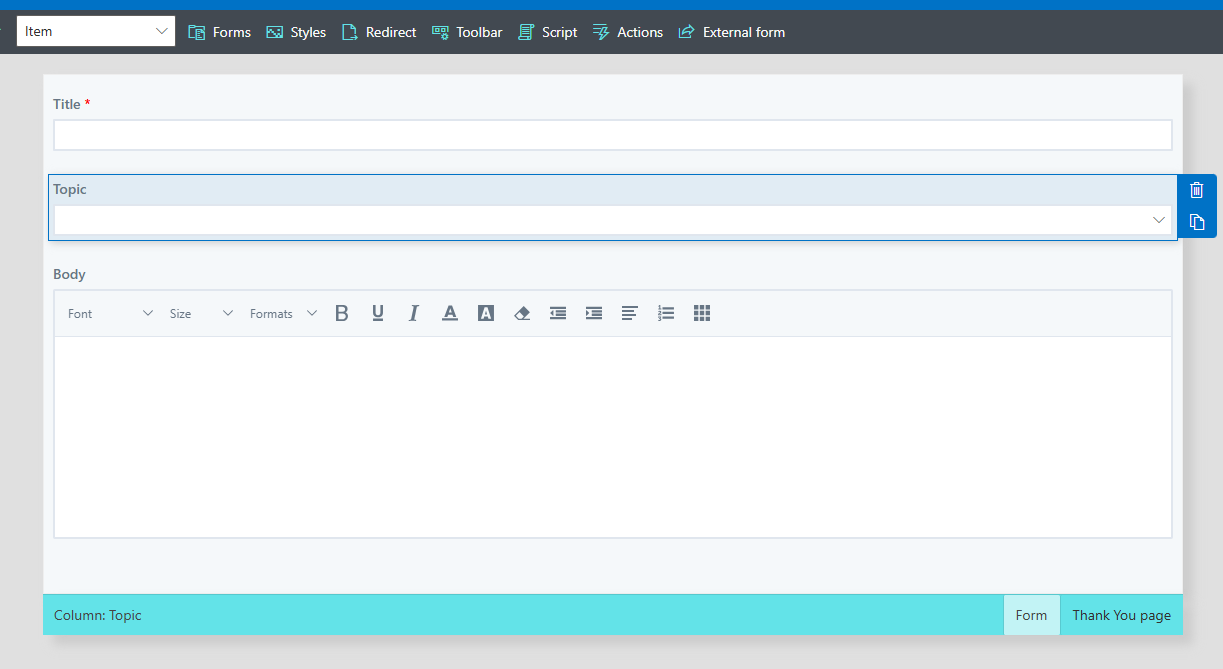
Create a new list and open it in Form Designer (Design on the list toolbar, then Form Designer). Add a multiple lines of text column named Body:
Then add a Choice column named Topic and provide suitable options:
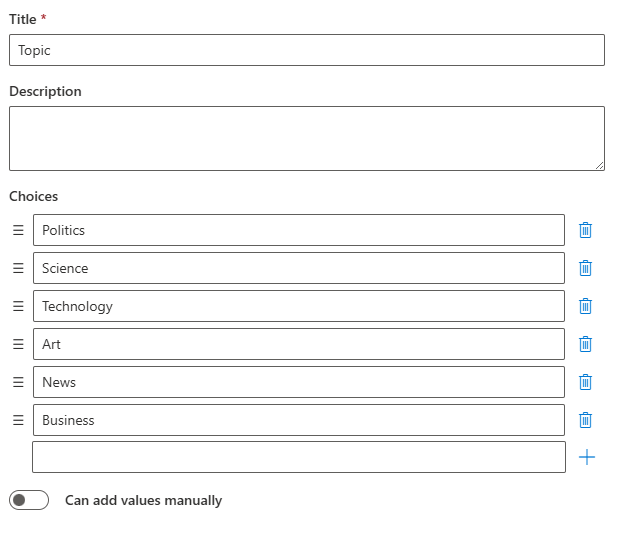
Note the naming advice, it matters more here than usual: the column name should be descriptive, because the AI reads it as context. A column named Topic with options like Science, Finance, and Travel gives the engine everything it needs; a column named Field3 with options A, B, and C gives it a puzzle. The same goes for option labels: name them the way a person would describe the content, and the AI's judgment aligns with yours.
Drag Title, Body, and Topic onto the form and publish it.
Create the import profile
From the Ultimate Forms main page, open Import, create a new import profile, and add an action to it:

The interesting line is the Topic mapping: it is set to the result of the $Analyze function, passing the email's Body field. That single mapping is the entire AI configuration, no prompts to write, no model to pick, no training to run. Save the action and the profile.
Watch it work
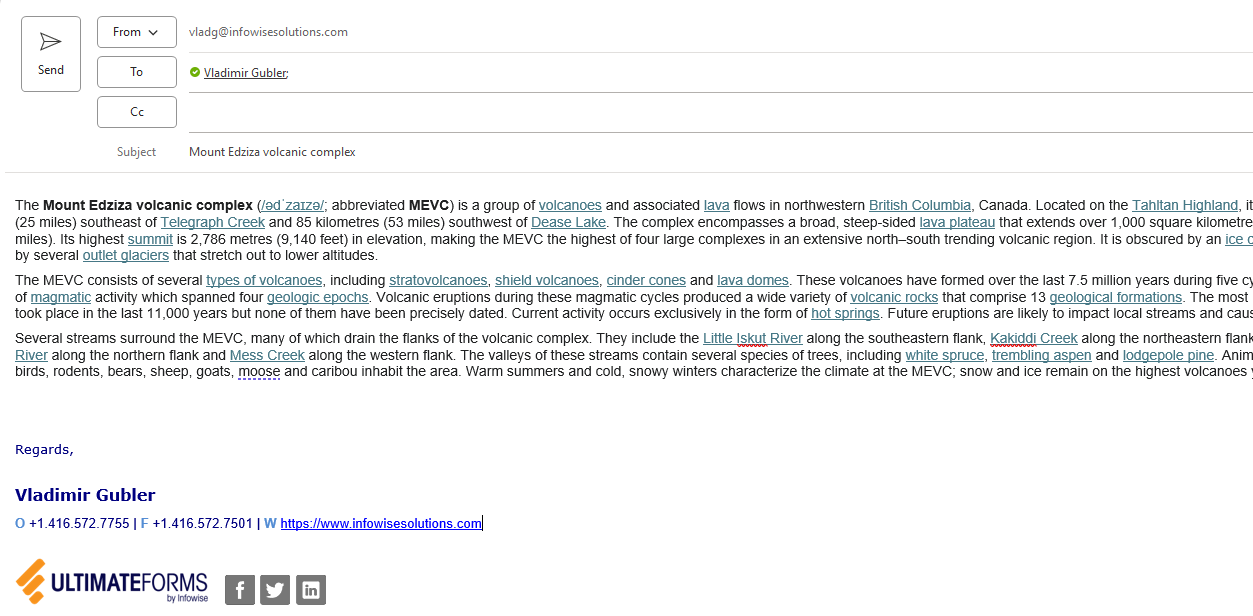
Send yourself a test email with some substantial content, the demo uses a scientific article about a volcano, copied from Wikipedia:
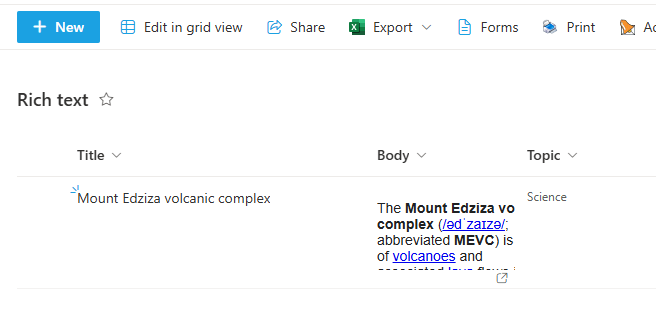
Run the profile manually or let the timer do it; at default polling settings it runs every 15 minutes. Then check the list, the email has arrived as a new item with its Topic correctly assigned:
And that's how the item looks in the SharePoint form:
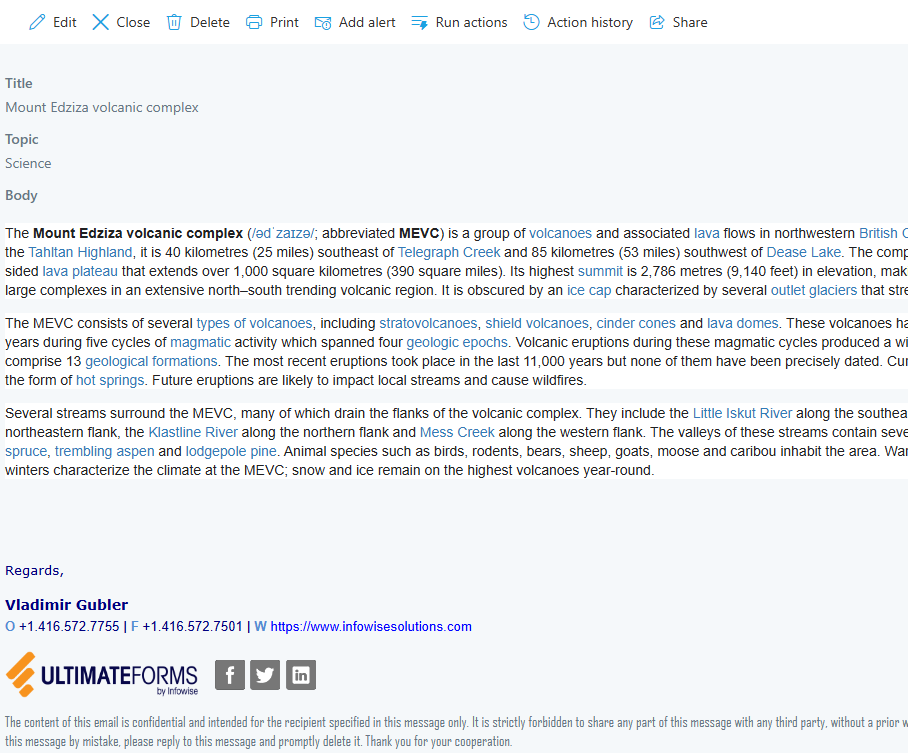
No one read that email. No one categorized it. It simply entered the system knowing what it was.
Beyond import: the same function, three placements
Because Analyze runs anywhere functions do, the demo pattern relocates freely. In a form's dynamic rules, it categorizes at the moment of submission. The user writes the description, the category sets itself, and the user either accepts it or corrects it, which beats an empty dropdown from both sides. In an action, it classifies on creation or change and feeds whatever follows, which is where the routing scenarios live: a support ticket whose description mentions invoices is tagged Billing and forwarded to the billing queue automatically; a complaint form submission is classified by subject and lands with the right team while the customer is still on the confirmation screen. And in import at volume, as demonstrated, it does the classification work nobody was ever going to do by hand: whole mailboxes and legacy datasets arriving pre-tagged.
Analyze also has siblings worth knowing in the same AI family: the AI Rewrite function polishes text, the AI Answer feature drafts responses, AI form generation builds list structures from a prompt, and AI-assisted validation checks quality on the way in. Together they share Analyze's philosophy: AI as a function inside your process, constrained by your structures, invisible to your users, rather than a chatbot bolted on the side.
Start with one column on one busy list, the Topic on your intake, the Category on your tickets, and let a month of correctly-tagged items make the argument for the next one.
Frequently asked questions
Add your comment