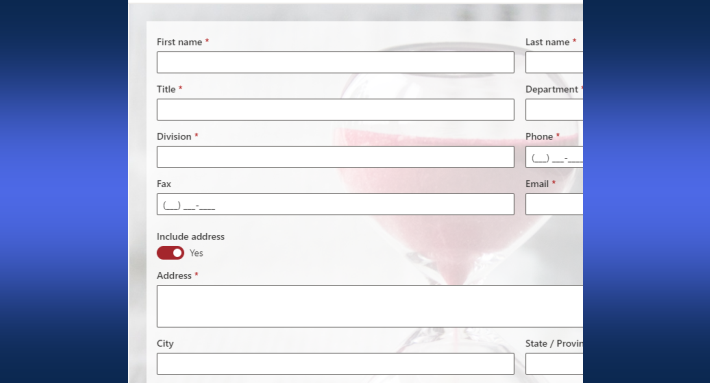
Anyone can submit data into your SharePoint, without an account, a login, or any access to your site. External Forms in Ultimate Forms publish any custom form at a unique public URL. Visitors fill it in from anywhere. Their submissions land in your list. Your list stays completely invisible to them.
Enabling it takes one click. This guide explains where standard external sharing falls short, how the security model works, and what a public form makes possible.
External Forms is just one of the features that make Ultimate Forms unique. For the complete picture, see the Power Apps alternative for SharePoint forms.
The gap that external sharing leaves
You need data from people outside your organization. Customers, vendors, subcontractors, applicants, event guests. SharePoint Online can share sites and lists with external users. It is a good feature, and many use it successfully.
But it assumes things that often aren't true. It assumes you know who the users are. It assumes they have Microsoft credentials. It assumes they will tolerate an invitation and login flow.
Real scenarios break those assumptions constantly. A signup form serves a large, diverse group you have never met. A complaint form serves customers who will not create an account to complain. A kiosk in a lobby serves whoever walks past, and logging in and out between visitors is not an option.
For these cases, sharing is the wrong tool. You don't want external people in your SharePoint at all. You want their data in, and them out. That is exactly what external forms do. The licensing and administration side of that choice has its own article.
The security model: a barrier, not a door
Here is the part worth understanding before anything else.
When you enable external access, you receive a unique external URL. The form itself runs on a special page on our website. Visitors reach it from anywhere, with no authentication.
But the form does not expose your list. It acts as a security barrier. Only the interaction you explicitly permitted passes through it.
Allow the New form only, and that is all the outside world can do: submit. Visitors cannot open your list. They cannot view existing items. They cannot discover what else the list contains. The URL leads to a form, not to SharePoint.
Contrast that with the alternatives. Sharing a list gives outsiders a door into your environment. A public form gives them a mail slot. The difference is the whole point.
Two more controls round out the model. CAPTCHA support ensures only actual human beings submit, whichever display mode you use. And the switch works both ways: uncheck external access, and the form is gone from the outside world that instant.
Enabling it: one click
Design your form as usual in Form Designer. When it is ready, click External form on the toolbar:
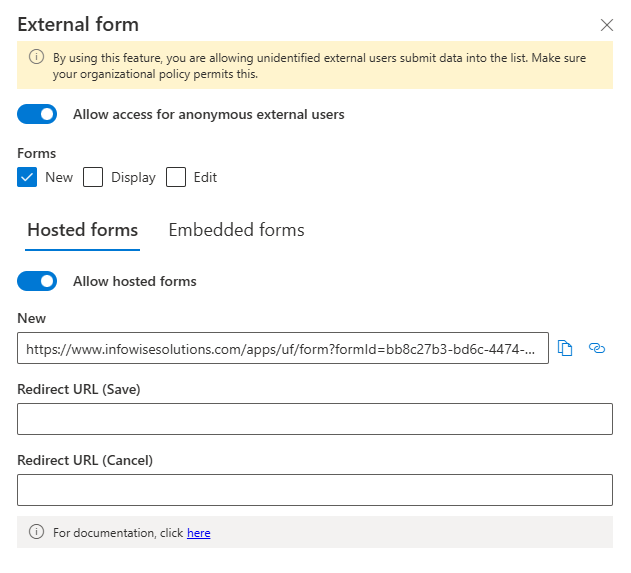
That's it. By default, only the New form is exposed, which suits most collection scenarios. You can also expose Display and Edit forms when the process calls for it. A vendor updating their own record is the classic case, covered in detail in Securely Updating SharePoint Data via Public Forms.
No form limitations apply. Any custom form designed in Form Designer can be exposed. Tabs, rules, validation, and permissions all come along. Repeating sections work too. The form your internal users get is the form the world gets, minus everything you chose to hide.
Hosted or embedded
External forms display in two ways.
Hosted is the easiest option. The form runs on a special page on our website, at its unique URL. You share the link, put it in an email, or hang a QR code on the wall. Done.
Embedded places the form on your own page. Your website's contact page, your support portal, your campaign landing page. It is slightly more involved, but still very easy, and the form inherits your page's surroundings. The full technique lives in Hosting Forms on Non-SharePoint Sites, and the click-by-click build in Embed a SharePoint Form in Your Website Step by Step.
Either way, CAPTCHA protection is available. And either way, the submission arrives in your list like any other item. That last point matters more than it seems, as the next section shows.
The submission is just the beginning
A public form is the front door to a normal SharePoint process. Everything you would build for internal data works on external data too.
Set the form's redirect to a Thank You page, so the visitor gets confirmation and next steps. Fire an alert so your team knows a submission arrived, with the details in the subject line. Let actions route it: assign the complaint by category, create the follow-up tasks, send the acknowledgment email to the address the visitor typed.
The visitor experiences a simple public form. Your team experiences a complete tracked process. Nobody re-keys anything, because the data was born in the list.
What people build with it
The use cases are wherever your organization meets the outside world.
Signups and registrations. Events, webinars, classes, newsletters. Templates exist for several: Event Registration, Webinar Registration, and Newsletter Sign-up.
Contact and problem reports. Support requests and customer complaints, submitted at the moment of frustration, with no account standing in the way.
Applications. Job applications with resume uploads, straight into your hiring pipeline.
Quote requests and surveys. Structured intake from prospects, and feedback from anyone.
Kiosks and front desks. Visitor logs, consent forms, guest feedback. One device, no logins, every entry captured.
And anything else, really. If the pattern is "outside person, inside data," an external form fits. Ten more arguments live in Ten Reasons to Use External Public Forms.
The feature is part of the SharePoint Online version of Ultimate Forms. If your forms already exist, you are one toolbar click from your first public form. Try it on something small, a contact form, a signup, and watch the mail slot outperform the door.
Frequently asked questions
Add your comment