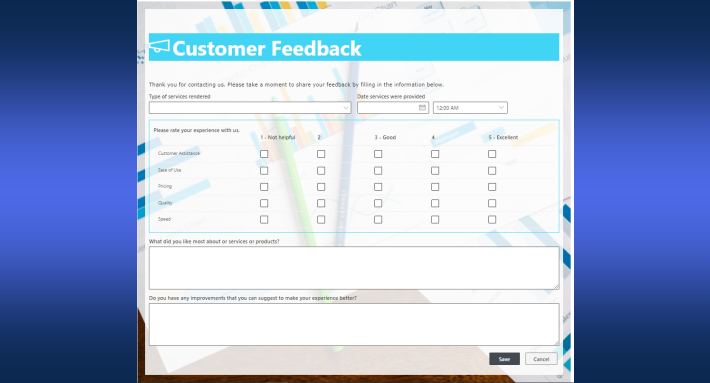
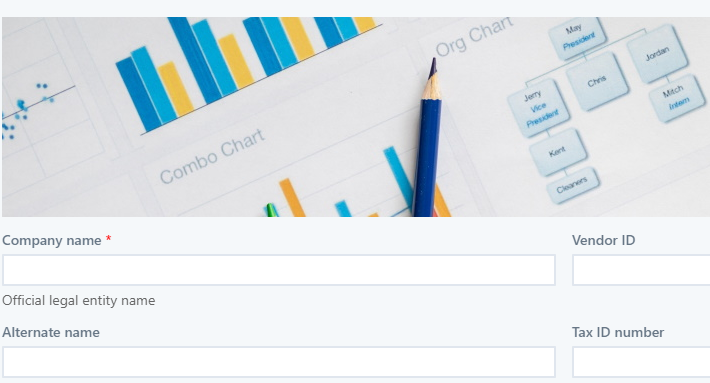
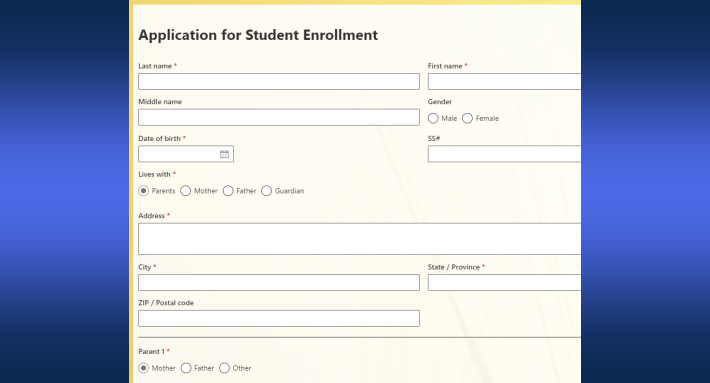
A form built in Ultimate Forms can live in four places: on SharePoint pages, in Microsoft Teams tabs, on a hosted public page with its own URL, and embedded inside your own website. One form, designed once in Form Designer, served wherever its audience is, and the audience can even be the anonymous public, because external forms need no SharePoint account and no login. This guide maps the four surfaces, the two kinds of data a form can sit on, and the security model that makes public hosting safe, URL authorization, reCAPTCHA, restricted form types, and monitoring.
One form, four homes
The reflex assumption is that a SharePoint form lives in SharePoint, and for internal work it usually does: published to the list, opened from views, placed on pages, surfaced in a Teams tab for the team that lives there. But the form's audience decides its home, and audiences keep being somewhere else. Customers are on your website. Applicants arrive from a job posting. Visitors stand at a kiosk. Partners work in their own systems. For all of them, the question "where does the form live?" has historically been answered with a second product, a hosted form builder, with the data split that the Jotform comparison examines at length.
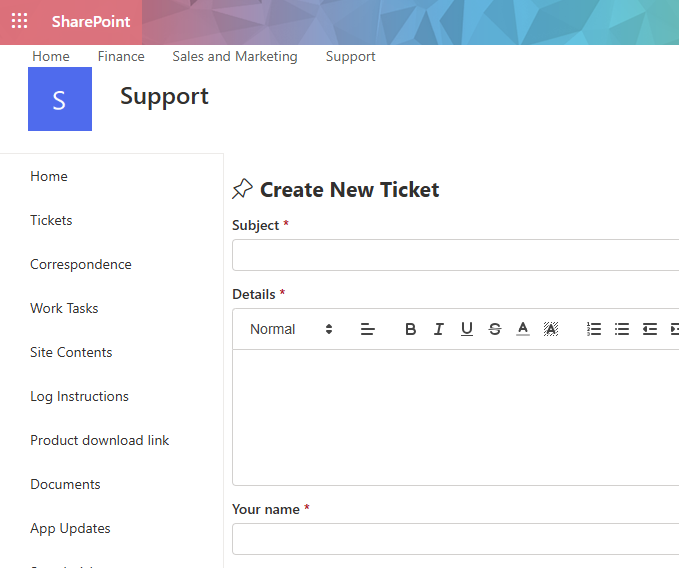
The four surfaces dissolve the question. The same designed form, with its tabs, rules, validation, and repeating sections, serves inside SharePoint, inside Teams, on a hosted page, or inside your site, and the submissions land in the same list either way. Where the form appears is a publishing decision, not a rebuild.
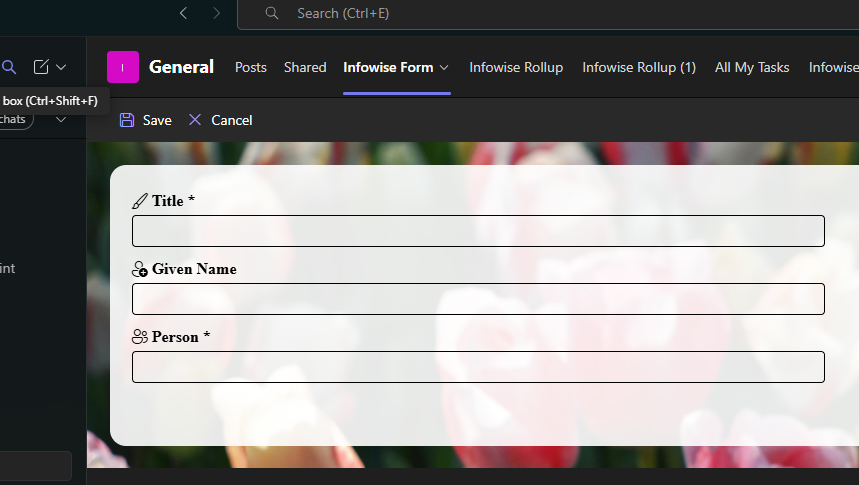
SharePoint pages and Teams tabs cover the internal audiences, the form where the team already works. Hosted pages cover external speed: enable external access and the form exists at its unique public URL, on pages we serve, with reCAPTCHA already built in, ready for a link, an email, or a QR code, the right choice when fast matters more than looks. Embedded forms cover external polish: the form rendered inside your own page, your contact page, your careers page, your campaign landing page, wearing your site's surroundings, which is the subject of the embedding sections below.
Two kinds of data under the form
The surfaces apply to two foundations. Forms on SharePoint lists are the usual case: build the list and columns, design the form, publish, and choose the surfaces, with external access one toolbar click away, as the external forms guide covers.
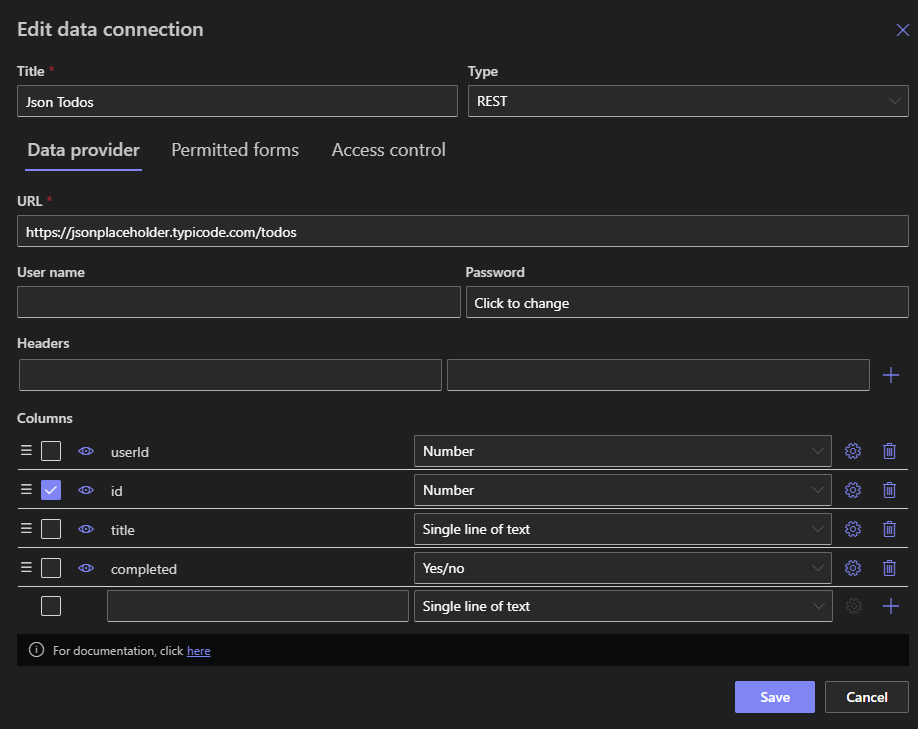
Forms on external data connections skip SharePoint storage entirely: the form reads and writes a database, a web service, or a REST API directly, while borrowing the full form and view infrastructure, and the same four surfaces apply. Connection types vary in capability, email and document connections only create, while database, web service, and REST connections support the full add, view, and edit range, which makes a publicly embedded form over your line-of-business database an achievable configuration rather than a development project. The deliberate symmetry means the hosting decision and the data decision stay independent: any foundation, any surface.
Embedding on your own pages
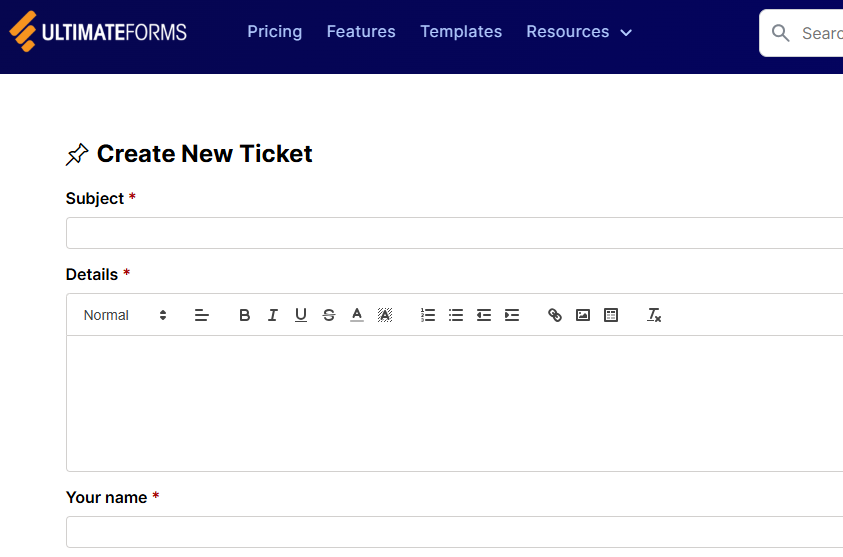
Embedding takes one script snippet and one setting. The snippet, provided by the app, goes inside the element on your page that should contain the form, a div on the contact page, say. The setting is the authorized page URL in the form or connection settings: the form will only load on pages whose URLs you have listed, so your snippet cannot be lifted and rehosted elsewhere. That is the whole mechanism, and the step-by-step walkthrough covers the build in detail, including the CMS side and reCAPTCHA keys. What matters architecturally is that the embedded form remains the same living form, publish a change in Form Designer, and every page carrying it serves the new version, with nothing to redeploy on the website side.
The security model, layer by layer
Anonymous input into internal systems deserves suspicion, and the feature answers it with layered controls rather than assurances.
The barrier architecture. External visitors never communicate with your SharePoint. They talk to the app's pages only, and the app performs its security checks on every requested resource, confirming the external form settings allow it, before anything passes through. The list stays invisible; the form is a mail slot, not a door.
Restricted form types. By default only the New form is exposed: submit, and nothing else. Exposing Display and Edit forms, for scenarios like vendors updating their own records, requires a site collection administrator, a deliberate gate on the decision that widens the slot.
URL authorization. Embedded forms load only on the pages you listed, which keeps the form yours even though the snippet is public.
reCAPTCHA v3. Bot protection without user friction: Google's invisible CAPTCHA judges humanity from interaction patterns, with no puzzles to solve. Hosted pages carry it built in. For embedded forms on open pages, enabling it is strongly recommended: sign up for reCAPTCHA v3, then enter the Site key and Secret key in the embedded form's properties, a ten-minute step that filters the internet's background noise of automated submissions.
Monitoring. Site collection administrators see every list with external form settings enabled, on the app's Monitoring tab under External form, so "what is publicly exposed right now?" is an inventory, not an investigation. A quarterly glance at that inventory, confirming each exposure still has an owner and a reason, is the whole governance routine the feature asks for.
The layers compose into the posture that makes public hosting defensible: minimal exposure by default, explicit authorization for every widening, bot filtering at the edge, and a complete inventory for the administrator.
The maintenance dividend
The architecture's quiet payoff appears six months after launch, when the form changes. In the second-product world, the website form and the internal process drift: the web form gains a question the backend never learned about, or the process adds a required column the web form never asks. With every surface serving one form definition, there is exactly one thing to change. Add the column in Form Designer, adjust the validation, publish, and the SharePoint page, the Teams tab, the hosted URL, and the embedded instance all serve the new version in the same moment, with no deployment, no website release, and no version skew to discover later. For the person who owns the process, the whole estate of public and internal entry points is one artifact, which is the only arrangement under which it stays correct.
Choosing the surface
The decision usually makes itself once the audience is named. Internal users on the intranet: the SharePoint page. A team that lives in Teams: the tab. External audience, needed today, or reached by QR code and link: the hosted page, since it requires nothing beyond the toggle. External audience on a journey through your website, where the form should feel like part of the site: embedded, with reCAPTCHA. And the surfaces are not exclusive, the same form commonly runs hosted for the QR poster and embedded on the website, one form, two doors, one list behind both. Whatever the surface, the submission starts the same machinery, alerts, actions, and the Thank You page, because underneath every surface it was always the same form.
Frequently asked questions
Add your comment