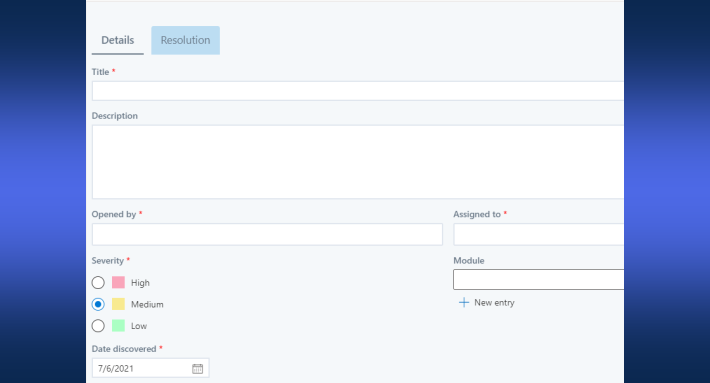
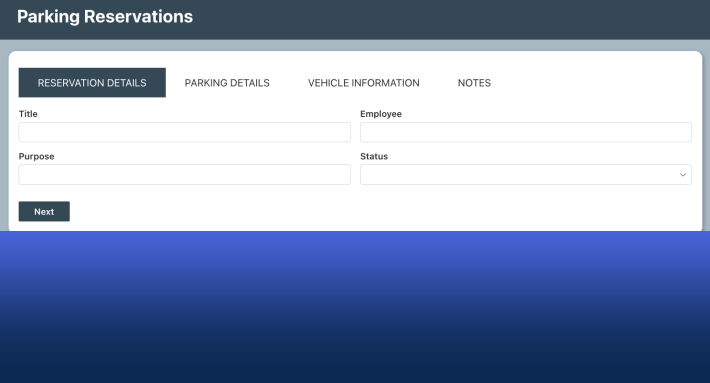
You can pin live SharePoint data directly into Microsoft Teams as tabs: a chart, a combined rollup view, a color-coded calendar, a list search, or a working form, each running as its own tab in any channel, with no SharePoint page behind it. Six Ultimate Forms web parts support this, the setup is a few clicks once the app is added to Teams, and a tab can pull from any site in your tenant you have permissions for, not just the site linked to the team. This guide covers which web parts are supported, what each is good for inside Teams, the setup steps with screenshots, and how to choose between pinning individual web parts and hosting whole pages.
Bring the data to where the attention is
Adding SharePoint web parts, lists, and pages to Teams is the standard way of integrating the two platforms, and the reason is behavioral rather than technical: for most people, Teams is where the workday actually happens. The channel is open all day; the SharePoint site is visited when something forces the trip. Every time a team member has to leave the conversation to check the numbers, find a document, or submit a request, some percentage simply don't, and the process slows by exactly that percentage.
Ultimate Forms closes the gap from both directions. In one direction, the Manage Teams action pushes into Teams, creating channels and sending messages to channels, groups, and individuals as your SharePoint processes run. In the other direction, the subject of this article, Teams pulls SharePoint in: live data and working forms pinned as tabs, sitting one click away from the conversation about them.
For displaying SharePoint data in Teams, two approaches are available. You can host entire SharePoint web part pages, covered in Using Ultimate Forms in Microsoft Teams, which suits dashboards composed of several interconnected web parts. Or you can host individual web parts, the approach here, which is simpler in a meaningful way: the tab stands on its own, with no SharePoint web part page to create or maintain behind it. One web part, one tab, done.
The six supported web parts, and what each does in a tab
- Charts display list data as live charts. As a tab, this is the team's numbers pinned to the channel: ticket volume by category next to the support conversation, pipeline by stage next to the sales chat, always current because it renders from the list, not from an export.
- Counters show live numbers computed from your lists: counts, totals, and averages presented as at-a-glance tiles. As a tab, this is the channel's scoreboard: open tickets, overdue tasks, this month's requests, the one number the team checks before standup, always current without anyone compiling it.
- Rollups combine data from several lists and libraries into one view, including items from external data sources. As a tab, this is the consolidated queue: every branch office's requests, every project's open items, merged into the single view the channel actually discusses.
- List Search searches lists and document libraries with precision. As a tab, it turns a channel into a lookup station, the knowledge base, the contract register, the asset inventory, searchable without leaving Teams.
- Calendar displays color-coded calendars drawn from multiple sources. As a tab, it is the team's schedule where the team plans: bookings, shifts, deadlines, and events overlaid in one view beside the conversation that coordinates them.
- Form displays a working form that submits data to SharePoint, including external forms via data connections. As a tab, it is intake at the point of need: the request form living inside the channel where requests come up, so "can you log that?" becomes a click on the next tab over rather than a link someone has to find.
One preparation step applies to all six: each web part reads its settings from a profile, so create at least one profile for the web part through the Ultimate Forms app before pinning it. The profile is where the real configuration lives, which list, which columns, which colors, and it is also what makes tabs cheap: ten tabs across ten channels can share one profile, and a profile change updates them all.
Setting up a web part tab, step by step
Make sure Ultimate Forms is installed, version 1.4.0.0 or later.
Add the app to Teams. In your enterprise catalog, click Add to Teams on the toolbar. In most environments the installation wizard has already performed this step, so check before doing it manually:
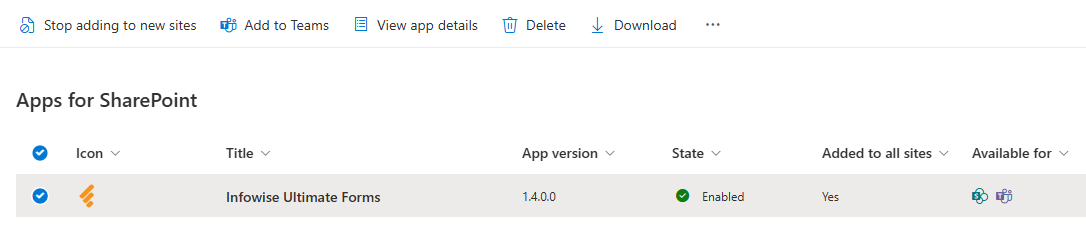
Once complete, the web parts are available in Teams for use in tabs.
Create the tab. Go to the team and channel where the web part belongs and click the plus button to add a new tab. Make sure to choose the Apps option:
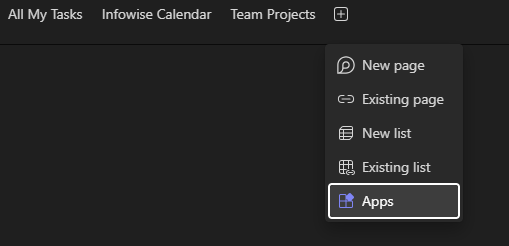
Pick the web part. Use search or browse to find the web part you want. Note that newer customer will see Ultimate Forms web part instead of Infowise Form. This is a new web part that implements the functionality of all Infowise web parts. It is recommended you only use this web part for all your needs.
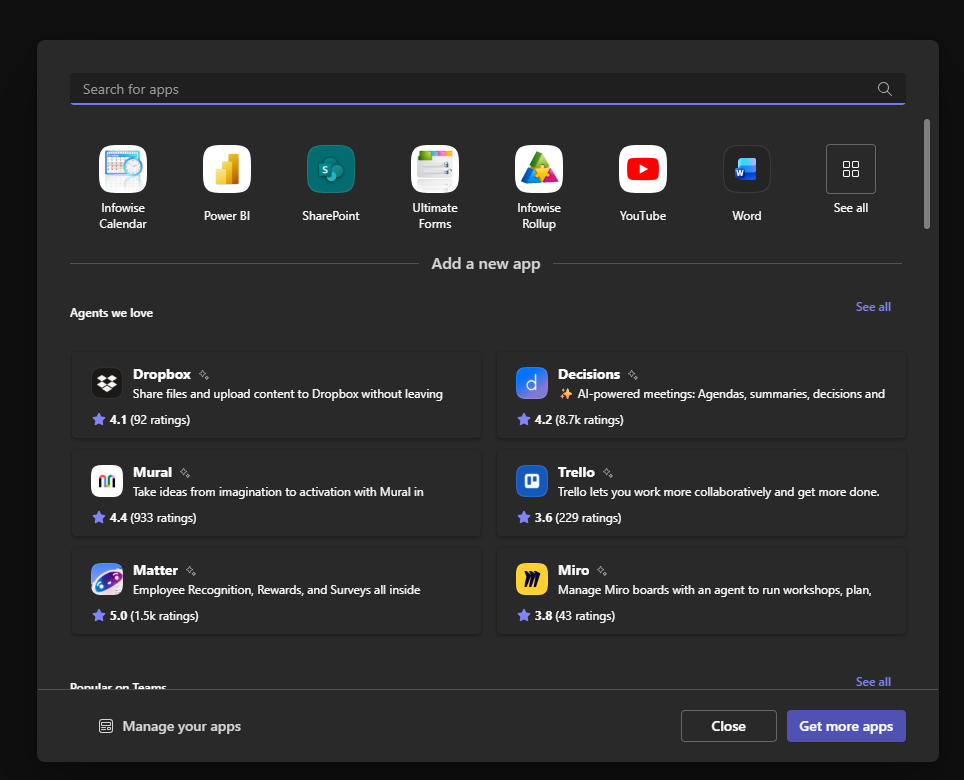
Connect it to data. Proceed through the prompt to create the tab, then configure the web part:
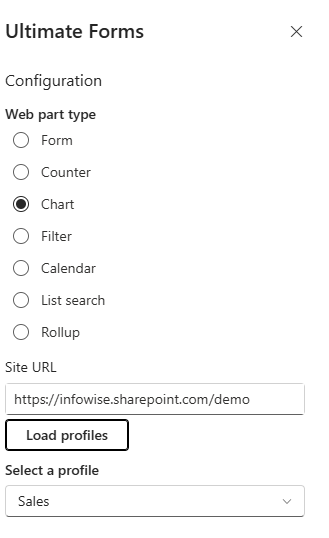
Most web parts ask for a site URL first and then load the available profiles from that site. Here is the quietly powerful detail: you can connect to any site in your tenant you have permissions for, not necessarily the site linked to the team. The finance team's channel can pin a chart from the operations site; a leadership channel can pin rollups from five departmental sites it would never visit one by one. Tabs are windows, and the windows can face any direction your permissions allow.
Adjust later as needed. Tabs are not set in stone: reopen the settings any time from the dropdown menu in the tab header and point the tab at a different profile or site.
Choosing your integration pattern
A simple rule covers most cases. One thing to show, one web part tab: the chart, the calendar, the intake form, each as its own named tab, which also gives users the fastest possible mental map ("numbers are on the Chart tab"). Several interconnected things to show, host a web part page instead: a true dashboard, where a filter drives a chart that sits beside a rollup, belongs on a page, pinned once as a single tab. And when the process should also speak, rather than wait to be visited, add the Teams action so status changes post into the channel between visits to the tabs.
Teams tabs are, in the end, an adoption instrument. The solutions you build in SharePoint are only as good as their usage, and usage follows proximity. Pin the form where requests are discussed, the chart where results are debated, and the calendar where plans are made, and SharePoint stops being the other place. It becomes the content of the tabs your team already lives next to.
Frequently asked questions
Add your comment