Attachments can graduate. The Manage Attachments action in Ultimate Forms moves documents between SharePoint's two storage worlds automatically: it copies or moves list item attachments into a document library, filing them into folders, stamping their metadata from the item, and linking them back to the item through a Document Link column, or works the other direction, turning library documents into attachments, or simply deletes attachments by filter. What used to be a manual download-and-upload chore becomes a configured action running in seconds with no user involved. This guide covers the two storage worlds, the action's three capabilities, and a complete promotion build. For the engine it belongs to, see the automation hub.
The two places documents live
SharePoint stores documents two ways, and the difference is not cosmetic. Document libraries are the first-class home: documents there carry version history, metadata columns, their own permissions, custom forms, and full participation in search and retention. List item attachments are the convenient afterthought: files stored inside the item, displayed in its context, with no versions, no metadata, and no life of their own.
The convenience is real, which is why attachments accumulate. Users attach files because the form invites it, external submitters attach resumes and receipts because attachments are the only door they have, and email imports deliver their files as attachments by nature. The result, in any mature solution, is a population of documents living in the wrong world: the contract that needs version history buried in an item, the invoice that needs metadata invisible to search, the policy that should be one governed document duplicated across forty items.
Ultimate Forms already narrows the gap with two column types: Associated Documents displays a library's matching documents inside the parent item, and Document Link stores links, so one real document serves many items without duplication. Both assume the documents are in a library, which is exactly the assumption the Manage Attachments action makes true.
The three capabilities
Copy or move attachments to a document library. The headline direction. The action takes an item's attachments, all of them, or filtered by file name and size, and places them in any library, in the root or a folder, creating the folder when it does not exist. Metadata maps from the item's own values, so the promoted document arrives tagged: the description, the category, the folder named after the item. And optionally, the action writes the new documents' links into a Document Link column on the item, so the user's experience is unchanged, the files are still "right there" on the item, while the documents themselves now live where versions, metadata, and governance apply.
Copy or move from a document library. The reverse direction: query conditions select documents in a library, and the action turns them into attachments on the item. Rarer, but exactly right when a process's output needs to travel with an item into a context where only attachments work.
Delete attachments. All, or filtered by the same name and size criteria, which is the cleanup half of any move operation and a policy tool on its own: strip oversized files, remove drafts after promotion, enforce what the item may carry.
The build: promoting instruction files automatically
The example promotes every attachment with "instructions" in its name to a document library, files it in a per-item folder, tags it, removes it from the item, and links it back, all triggered whenever an item is created or updated with matching attachments.
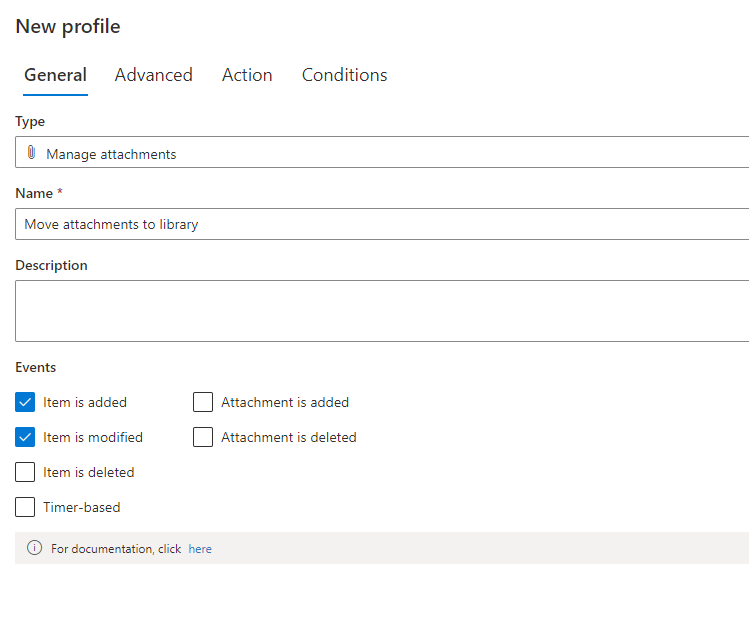
Create a new action, choose Manage Attachments as the type, and name it for its business meaning:
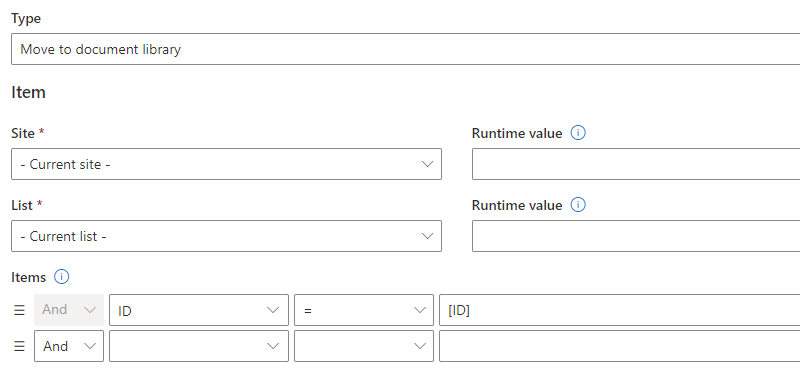
Select the items to operate on. The default, ID=[ID], targets the current item, which suits the usual case; the selection accepts any items in any site when the operation is broader:
Filter the attachments, here, file names containing "instructions", with size filters available alongside:

Point at the target library, on this site or any other, with the site URL and library name available as dynamic run-time values when the destination itself depends on the item:
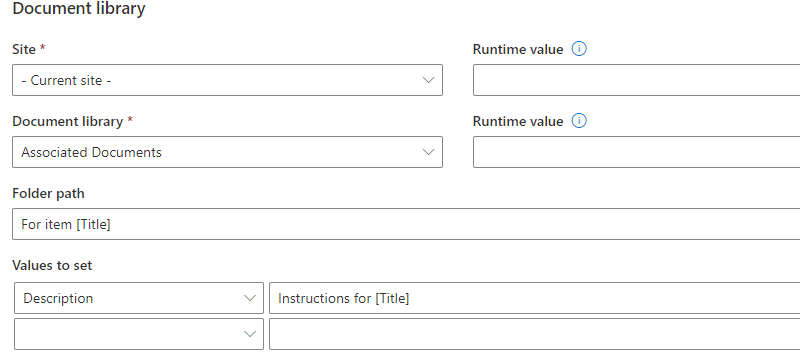
Then the filing and tagging: the folder path builds from the item's Title, so each item's documents land in their own folder, and the metadata mappings set the description from the item's values. The Document Link column, DLF in the demo, receives the promoted documents' links automatically:

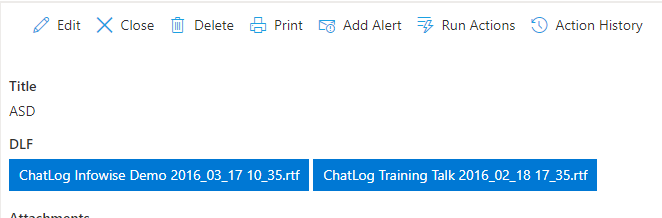
When the action runs, the sequence is: select the matching attachments, create the folder if needed, place the documents, apply the metadata, remove the originals from the item, and write the links back. A few seconds, no user intervention, and the item ends up looking like this:
Choosing copy or move
Each direction offers both verbs, and the choice carries meaning. Move is the promotion proper: the attachment ceases to exist, the library document is the single source of truth, and the Document Link keeps the item's view of it alive. This is the right default, because the whole point of the exercise is ending the double life. Copy keeps both, which is occasionally correct, a snapshot filed for the record while the working file stays on the item, but it reintroduces the duplicate problem deliberately, so it should be chosen for a named reason and paired with an answer to "which one is real?" For cleanup without promotion, the delete capability stands alone: no copies, no moves, just enforcement.
The patterns this unlocks
The intake promoter. Request forms that accept attachments, internal or public, get a promotion action on create: whatever arrives attached is immediately refiled into the governed library, tagged with the request's metadata, and linked back. Submitters keep the easy door; the organization keeps its document governance, and neither pays for the other.
The email-import splitter. Email imports into a document library take the first attachment by default; emails carrying several need the two-step: import into a list instead, where every attachment lands on the item, then a Manage Attachments action on New moves each one into the library as its own document. The combination turns a many-attachment email into properly separated, individually governed documents, automatically.
The archival sweep. On a status change to Closed, or on a schedule, move attachments from aging items into an archive library with the item's metadata preserved, and the list stays lean while the documents stay findable.
The policy enforcer. A delete action filtered by size or name pattern, running on modification, keeps items within the attachment policy without anyone policing it by hand, and without the awkward conversation that manual policing requires.
In all four, the action composes with its neighbors the usual way: wrapped in an action group when promotion is one step of a larger operation, guarded by after-change conditions so it runs on the transitions that matter, and logged in Action History, where every promotion is a lookup. The quiet design principle underneath: users should attach where attaching is easy, and documents should live where documents are governed. It is automation's job, not the user's, to reconcile the two.
Frequently asked questions
Add your comment