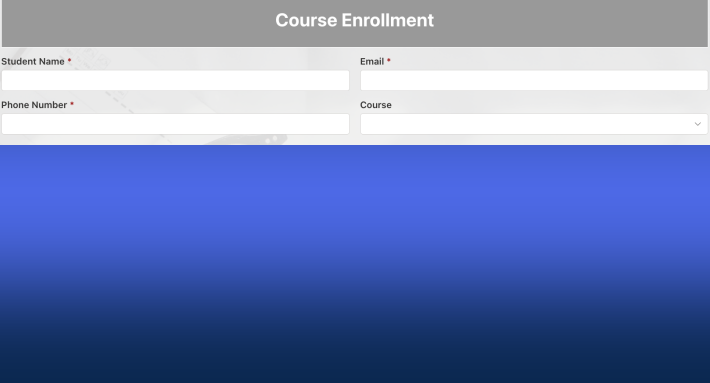
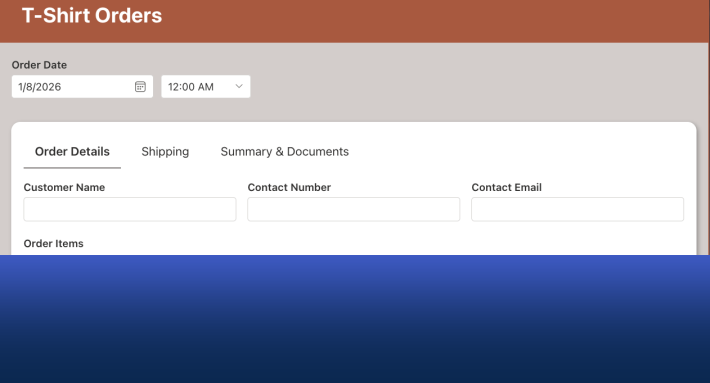
A manual action in Ultimate Forms can ask the user a question before it runs. Parameters are typed inputs, text, numbers, dates, choices, lookups, people, defined on the action and collected through a generated form at the moment of execution, then used in the action's settings exactly like column values. The user clicks Reject, a small form asks for the reason, and the action writes the reason, the status, and the timestamp in one pass. This guide covers what parameters are, how to define and use them, and the button placements that put them in front of users. For the engine underneath, see the automation guide.
The question only the user can answer
Actions normally feed on what the item already knows: combine [First Name] and [Last Name] into Full Name, stamp [Today] on a status change, email the [Created By]. Events, timers, and buttons differ in when the action fires, but the input is the same, the item's own columns.
Manual execution opens a possibility the other triggers cannot have: there is a human present, mid-click, and some information exists only in that human's head. The rejection reason. The quantity to reorder. The colleague to reassign to. The date the extension should run to. Without parameters, that information needs a detour, edit the item first, fill a column, then run the action, which is two trips and a spare column whose only job is smuggling input. With parameters, the action asks directly: the click produces a small form, the user answers, and the values flow into the execution.
Parameters are columns that live in the action
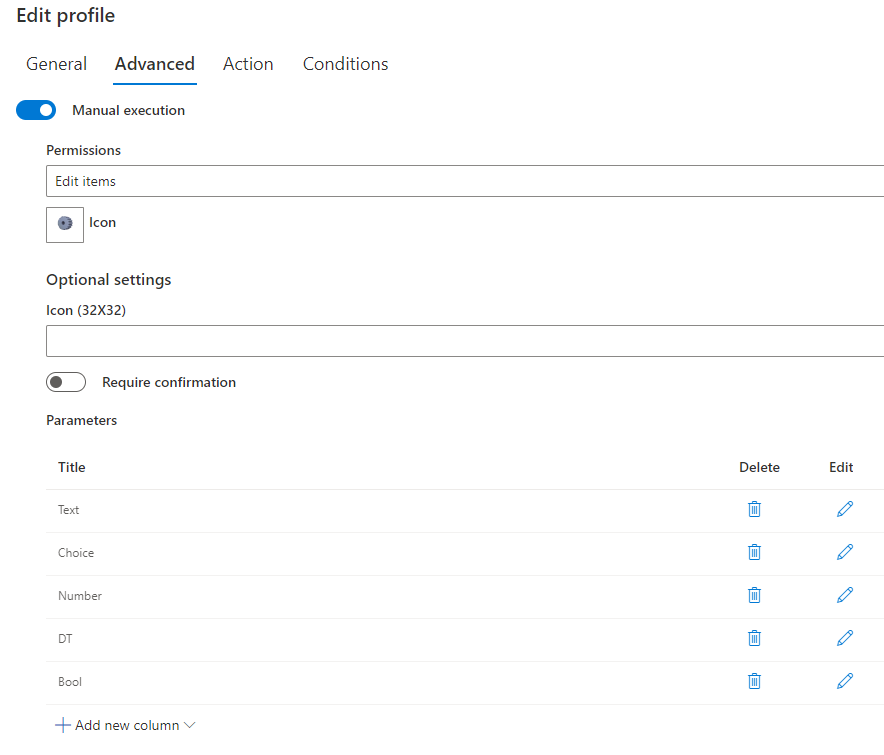
The design decision that makes parameters instantly familiar: they are defined exactly like list columns, through the same configuration forms, with the same settings. The difference is where they live, inside the action definition, not on the list, so they exist only for the moment of execution and never clutter the data model.
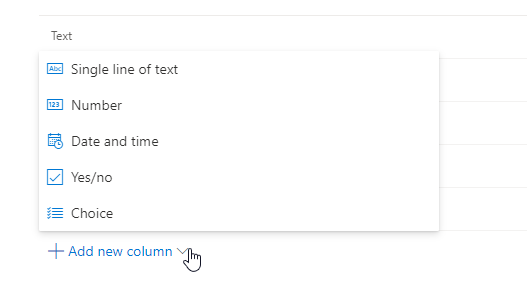
Seven data types cover the questions worth asking: text for free input, number for amounts and quantities, date with optional time, yes/no for confirmations, choice for predefined options, lookup for values drawn from a list, and person or group for assignments. And because they are columns in all but address, the column conveniences apply: default values pre-fill the form, and required parameters refuse to proceed empty.
That last setting deserves its bold type: an empty parameter is not ignored; it is used as an empty value. An Update action mapping a blank parameter into a column will blank the column. When empty is not an acceptable answer, make the parameter required, which is one checkbox and the difference between a prompt and an accident.
Defining and using them
The build happens inside any action with Manual mode enabled, the walkthrough uses an Update List Items action, the most common carrier:
Clicking Add new column opens the familiar type selection:
And each type opens its usual configuration form, identical to the list's own column forms, deliberately, so there is nothing new to learn:
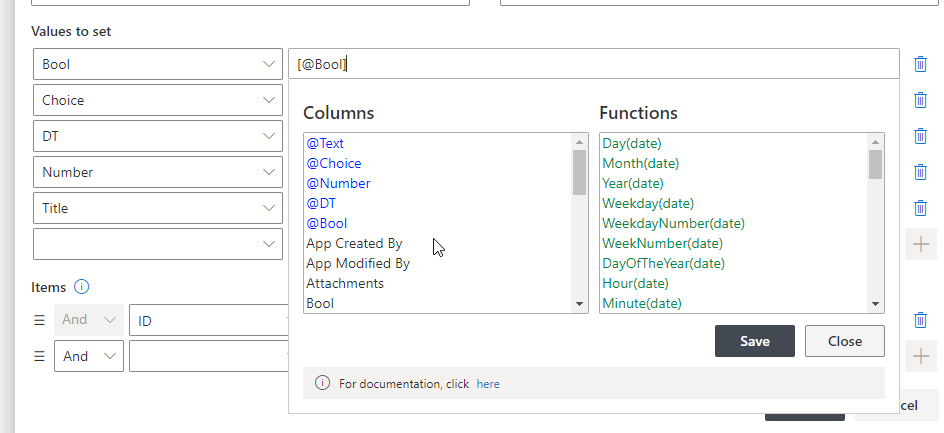
Once defined, parameters join the value picker, listed first, in blue, prefixed with the @ character, and usable anywhere a column value is: direct mappings, calculations, functions. Set Status to @Decision, append @Reason to the comments, compute a date from @ExtensionWeeks:
Running it: the generated form
Trigger the action from the Run Actions button, on the form command bar, or on the list view command bar after selecting one or more items:

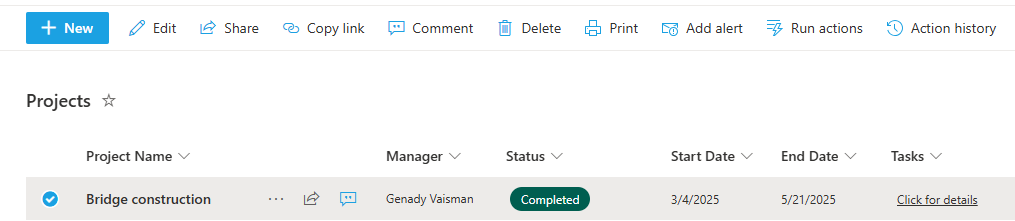
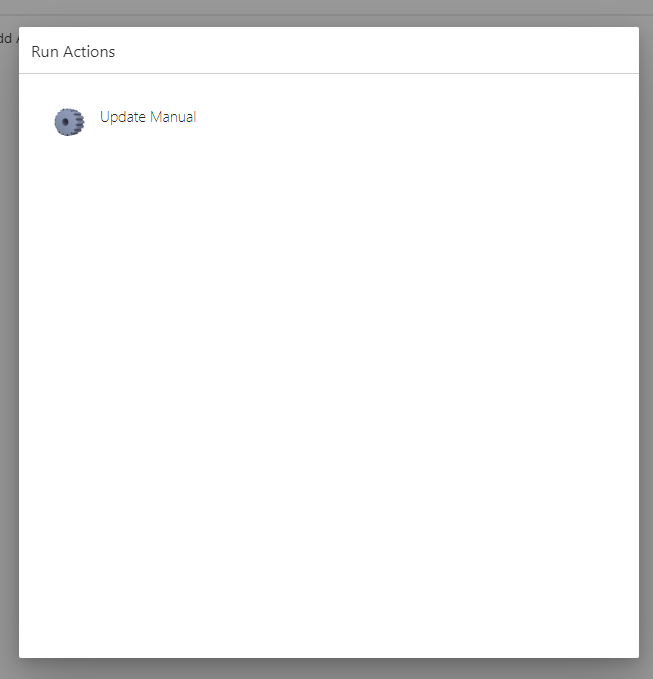
The click opens the list of manual actions available here, which, with visibility rules, is already filtered to the actions this user may run on this item in its current state:
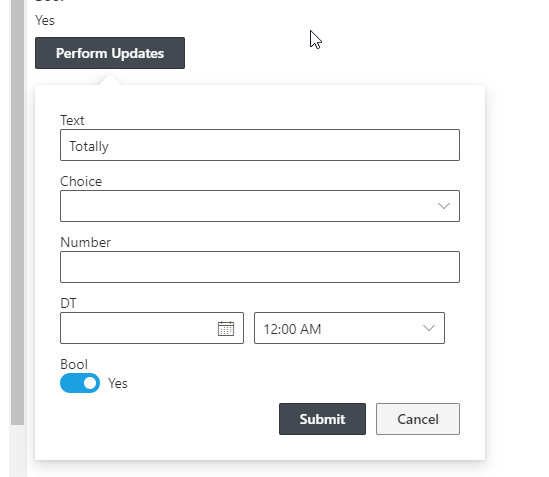
An action without parameters starts immediately. An action with them generates and displays an entry form, built from the parameter definitions, defaults pre-filled:
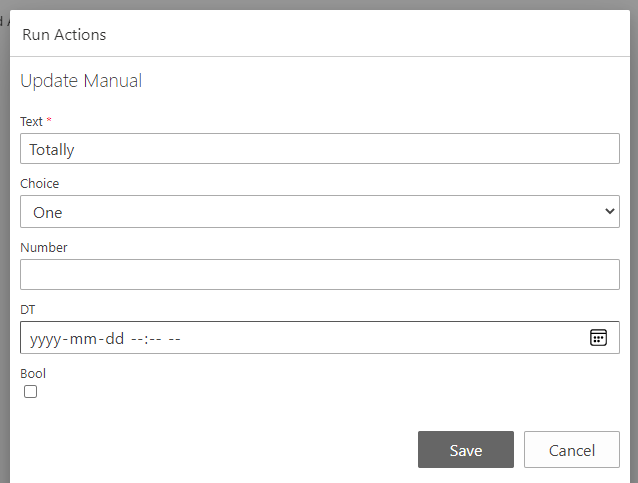
Fill, save, and the action executes with the entered values. The generated form is the feature's quiet elegance: nobody designed it, it exists because the parameters exist, and it is always exactly as long as the question list. When the parameter definitions change, the form changes with them, no maintenance, ever.
The better placement: buttons inside the form
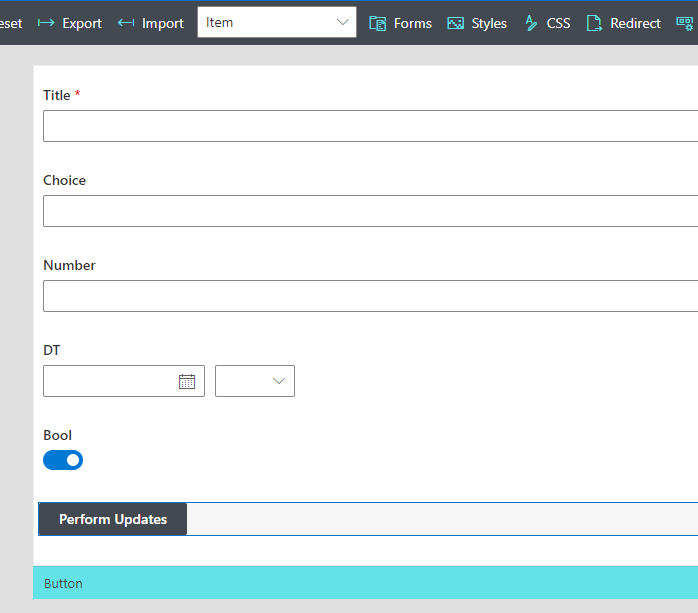
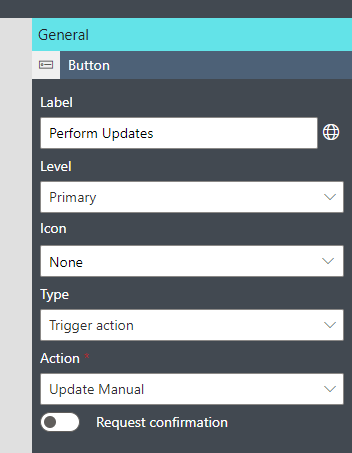
Toolbar execution works everywhere, but the friendlier pattern embeds the button in the form body itself, where the user is already looking, with a label that names the operation. In Form Designer, drag a button onto the canvas, set its type to Trigger action, select the action, label it for the consequence, "Request extension," not "Run", and publish:
Opening an item and clicking the button produces a floating parameter form:
Submit, and the action queues with a real-time progress indication:
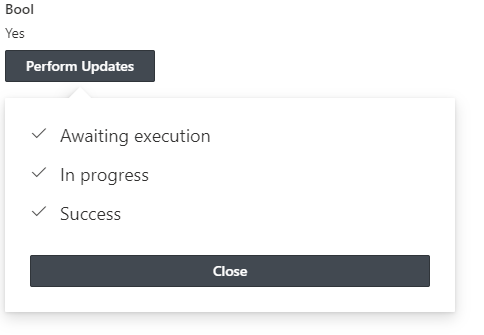
One behavior makes in-form buttons the recommended path: the item reloads when the action completes, so the user watches the status change, the comment appear, the date fill, immediate visual confirmation that the click did its work. The button design craft, labels, placement, how many is too many, has its own guide, and the same buttons can carry parameters from inside alert emails, which extends the ask-then-act pattern to the inbox.
Where parameters earn their place
The decision with a reason. Reject with a mandatory reason, approve with an optional note, escalate with a severity choice. The parameter makes the policy enforceable: no rejection without explanation, because the form will not submit without one. Paired with the approval machinery for formal stages, the parameterized button covers the informal decisions around them.
The bulk update with a variable. Select twenty items, run one action, answer one question, and all twenty get the new owner the @Assignee parameter named. The alternative is twenty edit forms, or a one-off request to whoever has list-admin rights, and the parameterized action is better than both: faster than the edits, and safer than ad hoc admin surgery, because the action changes exactly the columns it was configured to change and logs every run.
The reorder, the booking, the extension. Quantity, date, duration, the operational numbers that differ every time. One parameter each, and the operation stays one click plus one answer.
The handoff to another system. Actions that submit to databases and external applications can carry user-supplied values outward, the ticket number from the other system, the confirmation code, collected at the moment of sync rather than stored speculatively.
The design discipline is the one all good forms follow: ask only what the action cannot know. Every parameter is a small toll on the user's click, so defaults should carry the common case, required should guard the essential ones, and anything derivable from the item's columns should be derived, not asked. An action that asks one sharp question feels like a colleague; one that asks six feels like a form, and the user already had one of those.
Frequently asked questions
Add your comment