External users can update their own SharePoint records without accounts, logins, or any access to your list. The mechanism in Ultimate Forms is the personal edit link: each item carries an unguessable unique ID, the Edit form's external URL combines it with the form's own ID, and an alert emails each submitter their link automatically. The visitor clicks, sees exactly their record, corrects it, and saves, while every other item stays invisible. This guide explains the security model and builds the complete loop, submit, receive your link, update, on an address-collection form. For the foundation it stands on, see external public SharePoint forms.
The second half of the public-forms problem
Collecting new data from the public is the solved half: enable the New form externally, share the link, and submissions flow in with the list never exposed. The New form needs no access to existing items, so there is nothing to protect beyond the submission itself.
Updating is the harder half, and the more valuable one. The vendor whose contact details changed. The member confirming this year's address. The registrant amending their session choices. The applicant adding the document you requested. In the account-based world, each of these means credentials, invitations, and password resets for people who will use the system twice a year, which is why the updates usually arrive by email instead, to be re-keyed by your staff with all the delay and error that implies.
The edit-link technique removes the account without removing the security. Each record becomes reachable through exactly one URL, belonging to exactly one person, and the question the whole feature turns on is whether that URL can be guessed.
The security model: an unguessable address
The external Edit form URL carries two GUIDs, globally unique identifiers: one for the form, one for the specific item. A GUID has so many possible values that the combination space rivals the number of atoms in the observable universe, so there is no browsing, probing, or incrementing a way to someone else's record. The URL is not a password the user knows; it is an address that cannot be found except by being given it.
The usual barrier architecture stands behind the address. The visitor never touches SharePoint: requests go to the app's web interface, which validates every one against the external form settings before anything passes. Only forms explicitly marked external are reachable at all, you choose which form types each list exposes, and enabling Display and Edit externally is the deliberate, administrator-gated decision the hosting guide covers. The result: the holder of a link can edit the one record the link names, through the one form you designed, and nothing else exists from where they stand.
The build: an address form with a correction loop
The demo is an address collection form, Address Info, for clients, members, or partners: they submit once, then update through their personal link whenever the details change.
The list and the form
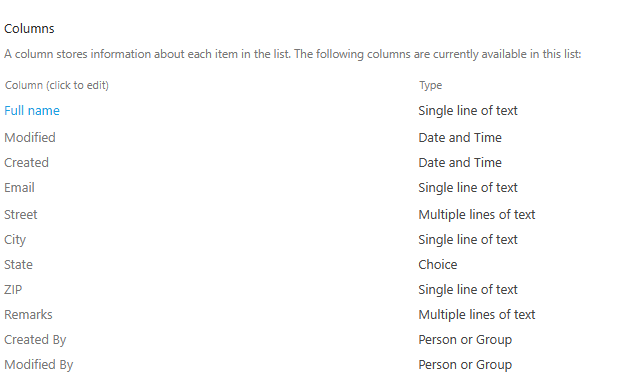
Create the list with the columns the form needs, including an Email column, it will drive the link delivery:
Design the form in Form Designer as usual:
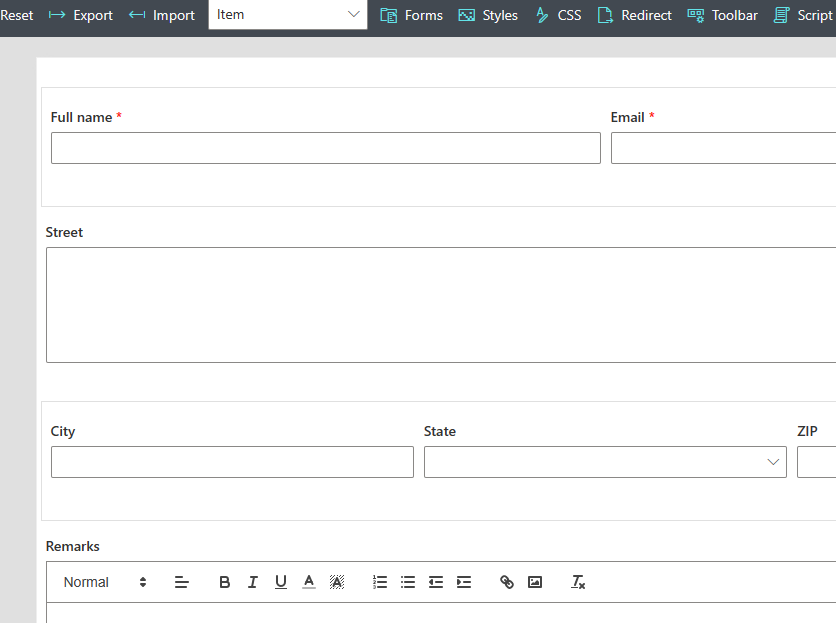
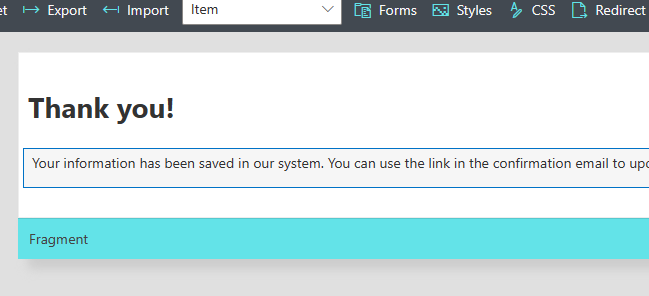
Add a Thank You page, so the submitter gets confirmation and the first hint of the loop, "check your email for your personal update link" is exactly what this page should say:
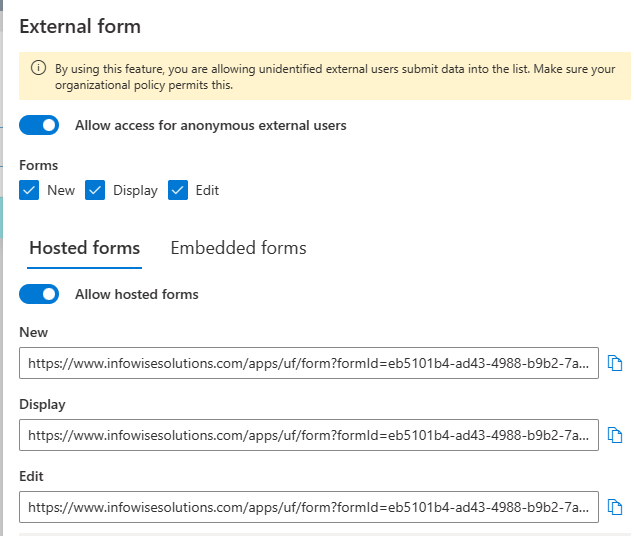
Then enable External form, with all form types allowed for this scenario, and copy both the New and Edit links for the next step. The demo uses hosted pages; embedding on your own site works identically:
Publish the form.
The alert that delivers the link
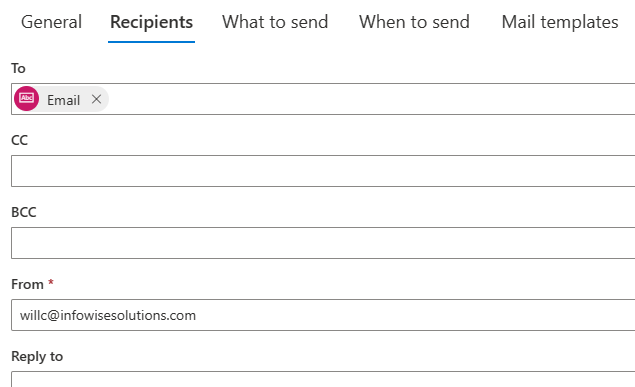
The edit link must reach each submitter personally, and an alert does it automatically. Create a new alert on the list, and under Recipients, remove yourself and add the Email column, so each alert goes to whatever address that submission carried:
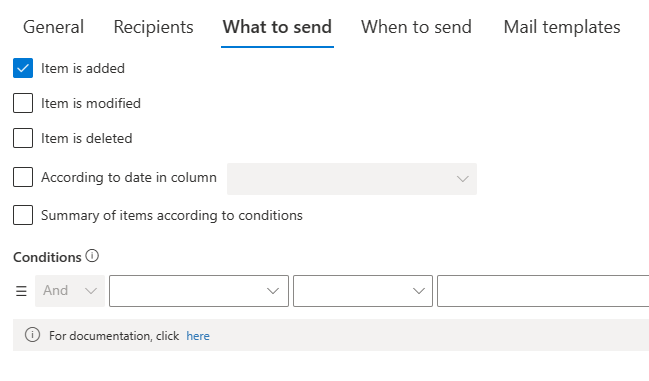
Under What to send, select Item is added only, the link should go out once, at submission:
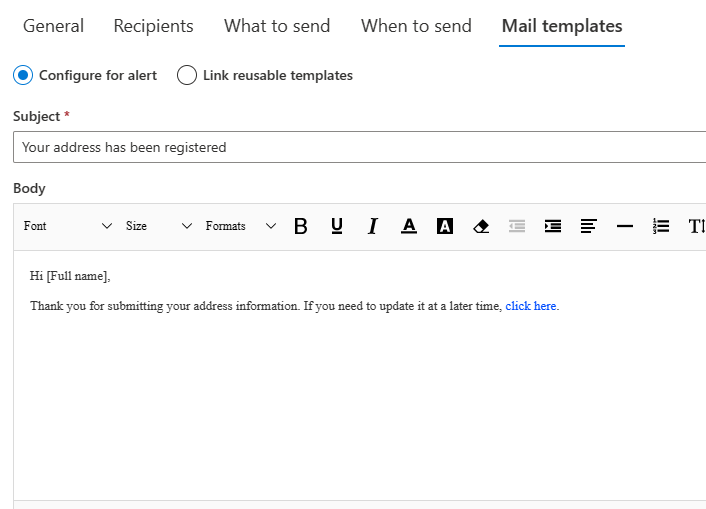
Then the template, and its one crucial move: compose the message, and insert the Edit form URL as a link using the toolbar's link button. The pasted URL contains a token that the alert replaces with each item's actual unique ID at send time, which is what turns one configured alert into a personal link per submitter:
Save, and the loop is complete. The email-writing craft applies here with a specific twist: this message is the user's only key to their record, so the subject should say what it is ("Your address on file, and your personal update link") and the body should say to keep it. A second alert on Item is modified, sent to the same Email column, closes the loop further, the submitter gets confirmation that their change was received, which is the courtesy that stops the "did my update go through?" reply.
The round trip
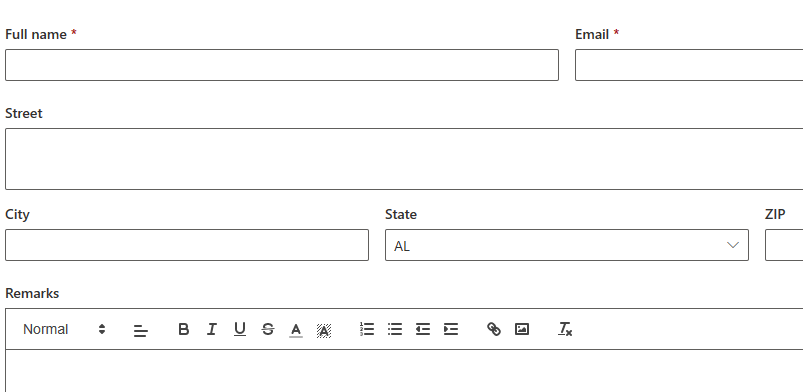
Open the New form link and submit, with a real email address:
The alert arrives within a minute or two:
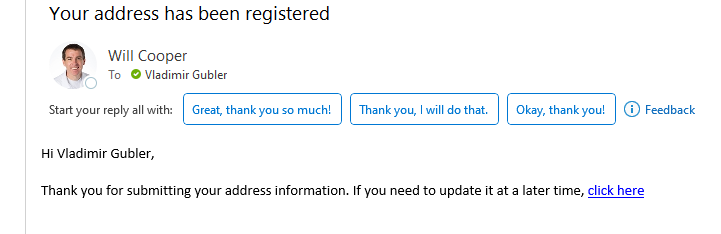
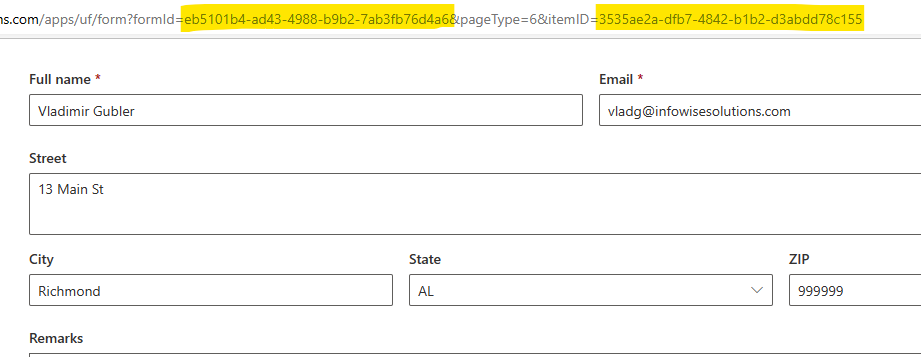
And its link opens the Edit form, pre-filled with the submitted values, ready for corrections, with the two GUIDs visible in the URL, the form ID and the item ID whose combination is the whole security story:
Where the loop earns its keep
Standing records the outside party owns. Vendor contacts, member addresses, emergency details: data that is theirs, changes on their schedule, and goes stale precisely because updating it required asking you. With the link in their original confirmation email, the update is self-service, and a yearly scheduled alert can re-send the link with a "please confirm your details" nudge.
Registrations that change. Event choices, dietary requirements, attendance counts, amended by the registrant instead of through your inbox, with the record always current when the planning happens.
Submissions that need a second installment. The application missing a document, the claim needing one more detail: instead of receiving attachments by email, send the record's own link and let the addition land in place. The form the external user sees can differ from the internal one, permission rules hide the internal columns, the status machinery, and anything else that is yours rather than theirs, so "they can edit their record" never means "they can see your process."
One design discipline completes the picture: treat the link like the credential it functionally is. Deliver it to the address the submitter gave and nowhere else, let validation keep that address well-formed, and remember the off switch, unchecking external access kills every outstanding link that instant, which is the clean answer when a campaign ends or a record closes. Within those habits, the technique delivers something genuinely rare: write access for outsiders with no accounts, no helpdesk, and no exposure, one record per person, one person per record.
Frequently asked questions
Add your comment