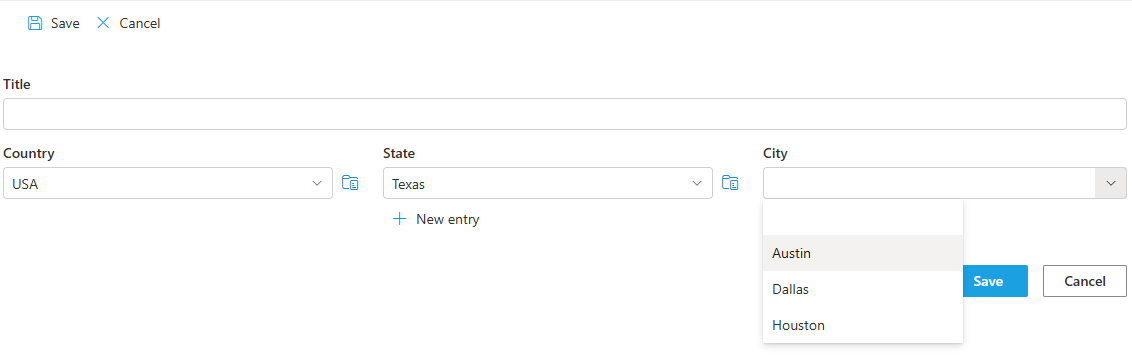
A SharePoint form can cascade lookups through as many levels as your data has: pick a country and the state dropdown shows only that country's states; pick a state and the city dropdown shows only that state's cities. The Connected Lookup column in Ultimate Forms builds the chain without code, one column per level, each declaring the level above it as its parent. This walkthrough constructs the classic three-level example, Countries, States, Cities, feeding a Sales form, and along the way covers the design rule that makes any number of levels work: the reference lists must mirror the hierarchy the form navigates.
Why chains beat flat dropdowns
Lookups are among the most commonly used column types in SharePoint: a dropdown of items from another list, usually on the same site. And despite their popularity, regular lookup columns are limited in ways that grow with your data. A flat lookup over a large list becomes unusable as a picking experience, and with very large lists, thousands of items, it effectively stops being an option at all. Nobody scrolls three thousand cities.
The cure is context. At any moment, the user's earlier choices have already eliminated most of the options: once the country is France, 97% of the world's cities are irrelevant. A cascading chain applies that elimination automatically, level by level, so every dropdown the user opens is short, relevant, and hard to get wrong. The payoff is threefold: faster entry, fewer mispicks (the Paris-Texas-vs-Paris-France class of error disappears when Texas was never offered), and reference data that stays clean because users select rather than type.
What Connected Lookup adds
The Connected Lookup column extends the regular lookup with the capabilities the chain needs, and several it simply deserves:
- Parent/child filtering: the heart of the cascade, selecting a state filters to that state's cities.
- Filter and sort by view: offer only relevant items, filtering out archived or discontinued entries automatically.
- Add new items from the form: when the value you need doesn't exist yet, add it on the spot without switching to the lookup list and losing your work.
- Easy cross-site lookups: select the site, then the list, with no site column gymnastics.
- Auto-complete mode: type a few characters and only matching values appear, the lifesaver for large lists.
Mechanically, the column filters its dropdown by one or more parent values taken from other columns in the same list, with both lookup and choice columns supported as parents, and both single and multiple relationship types. One structural requirement makes everything work, and it is the sentence to remember from this article: the lookup list itself must contain a matching parent column, with a value on every item. The States list must know which country each state belongs to, or there is nothing to filter by. Relationship data lives in the reference lists; the form merely reads it. Setup then stays easy on purpose: as long as that column exists in the lookup list, the settings offer it automatically.
The build: Countries, States, Cities, Sales
The example is a Sales list where each figure is assigned to a country, state, and city, with each selection filtering the next:
All four lists use the versatile Custom list type.
Countries
Create a new custom list. No columns to add; the built-in Title column is all this level needs. The top of a hierarchy has no parent, so it is just a list of names.
States
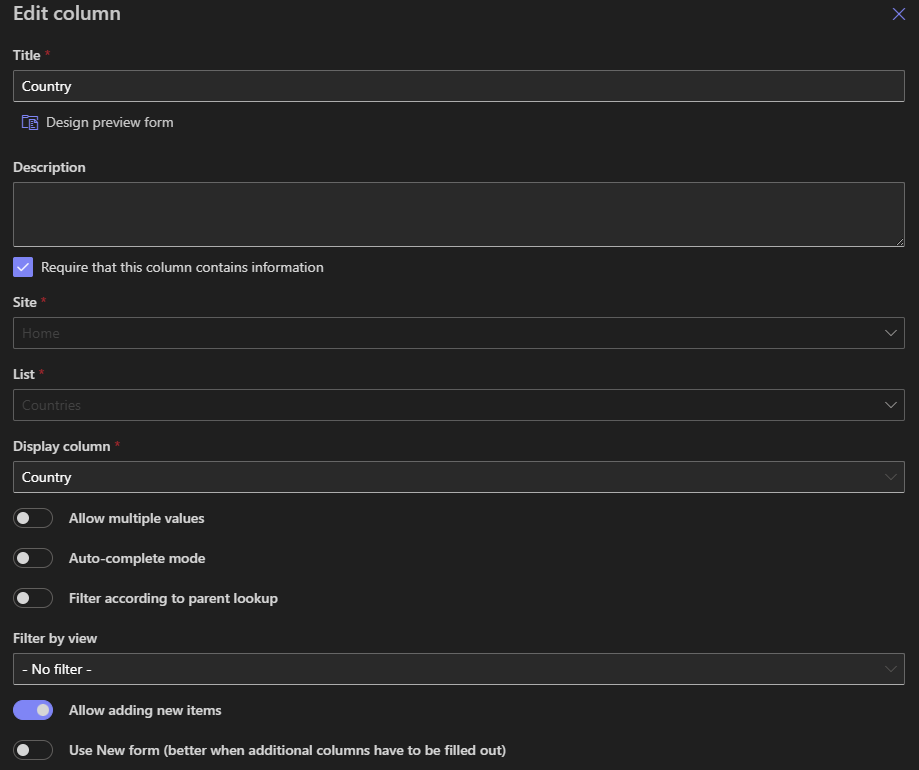
Create the list, then add a lookup pointing to Countries, either the built-in lookup or Connected Lookup for the extra functionality. This is where add-from-form earns its keep: you are entering a new state and realize its country was never entered, and instead of abandoning the form to fix the Countries list, you add it directly. Since this lookup stands alone, make sure the Filter according to parent lookup checkbox is unchecked:
Cities
Create the list and give it two columns. First, a lookup to Countries, regular or Connected Lookup, again with filtering unchecked, it is standalone at this level. Second, a Connected Lookup pointing to States with Filter according to parent lookup checked; the field should pre-select Country as the parent automatically:
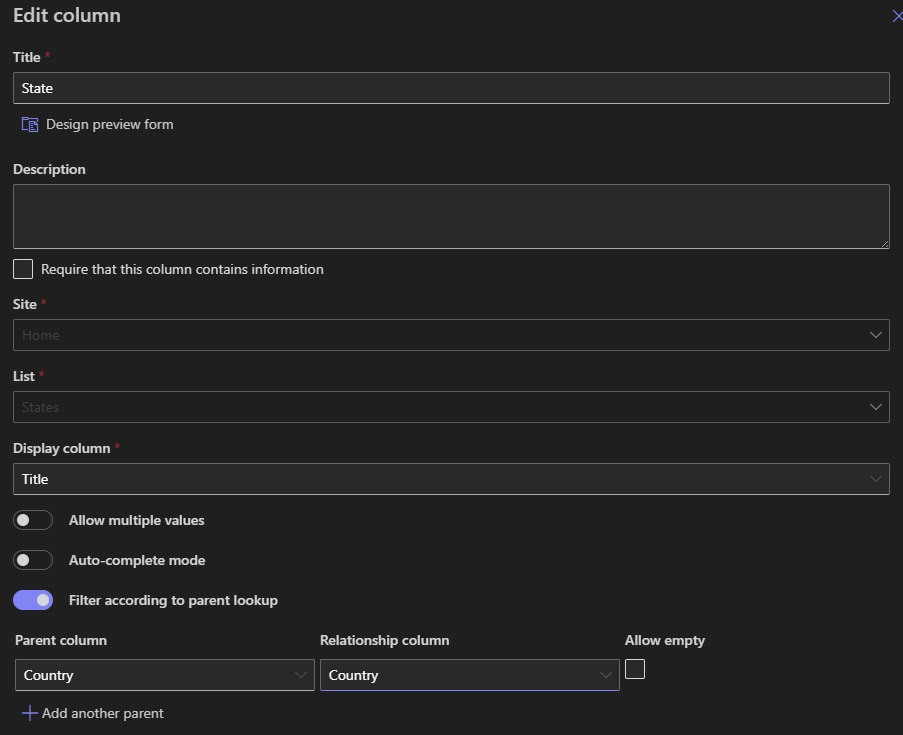
Notice what just happened: the Cities list is itself a two-level cascade. Every list below the top of a hierarchy repeats the same pattern, carry the ancestors as columns, filter by the immediate parent, which is exactly what makes the recipe extend to any depth.
Sales
Now the form that consumes the hierarchy. On the Sales list, add three columns in sequence. A lookup to Countries, standalone, filtering unchecked. A Connected Lookup to States, filtering checked, with Country pre-selected as the parent. And a Connected Lookup to Cities, filtering checked, switching the parent field to State:
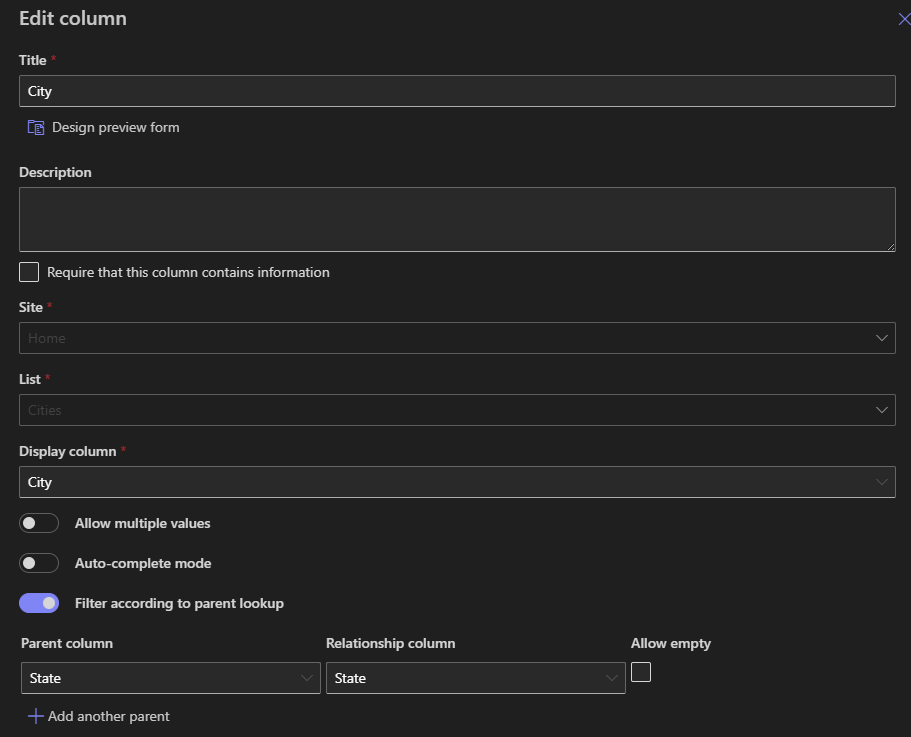
Add a currency field for the sales amount, put some data in the reference lists, and create a sales entry: the cascade runs, each choice narrowing the next.
The general recipe
Strip the geography away and the pattern is mechanical enough to write down. For an N-level hierarchy: build one reference list per level, each carrying a lookup to the level above with a value on every item; then on the consuming form, add one lookup per level, the top one standalone, and each subsequent one a Connected Lookup filtered by the level immediately above it. That recipe builds division → department → team for org structures, category → subcategory → product for catalogs, site → building → room for facilities and assets, practice → matter type → matter for legal intake. Whenever your organization draws something as a tree, this is how a form walks it.
Two refinements complete the toolkit. When a level should filter by more than one thing at once, products by category and region, say, a Connected Lookup accepts multiple parent columns simultaneously, including choice columns. And when the reference lists live in another site collection entirely, data connections carry the lookup across. Between depth, width, and reach, the dropdowns in your forms can mirror the real shape of your organization's data, and your users just see short lists that always contain the right answer.
Frequently asked questions
Add your comment