Overview
Alert Email Action Buttons enable users to trigger predefined actions and execute business processes directly from alert email messages. This feature removes the need for users to open the related item in a browser to perform updates. A common application is providing Approve and Reject buttons within approval alert emails.
Prerequisites
Before configuring email action buttons:
-
Use an existing list or create a new one.
-
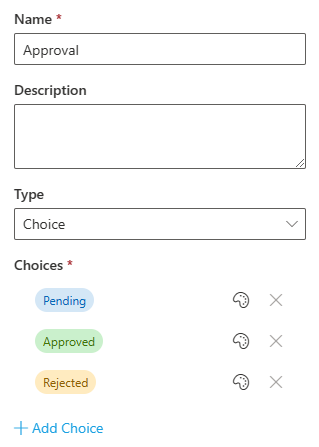
Confirm the list contains a choice column (e.g., Approval Status) with values such as Approve, Reject, and Pending.
Step-by-Step Configuration
1. Create Update Actions
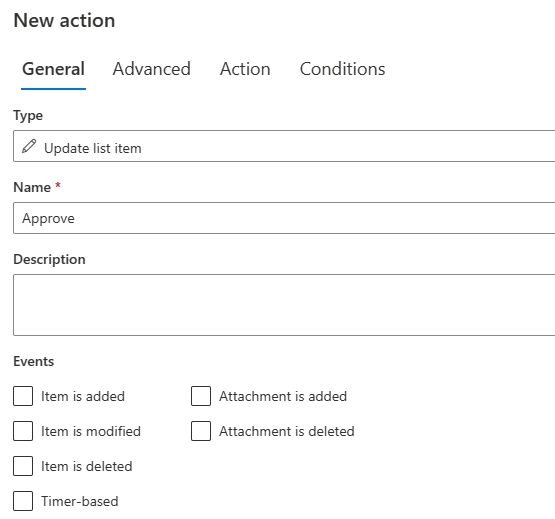
Define two Update Item actions in Ultimate Forms:
-
One action to set the choice column to Approve.
-
One action to set the choice column to Reject.
Disable any event triggers for these actions, as they will be initiated from the alert email.
2. Create the Alert
-
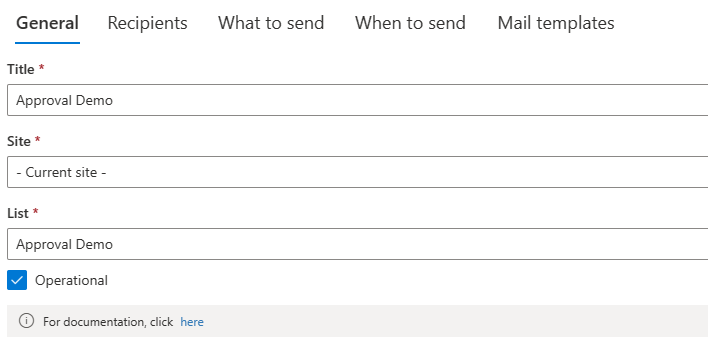
In the Alerts module, create a new alert (e.g., Approval Alert).
-
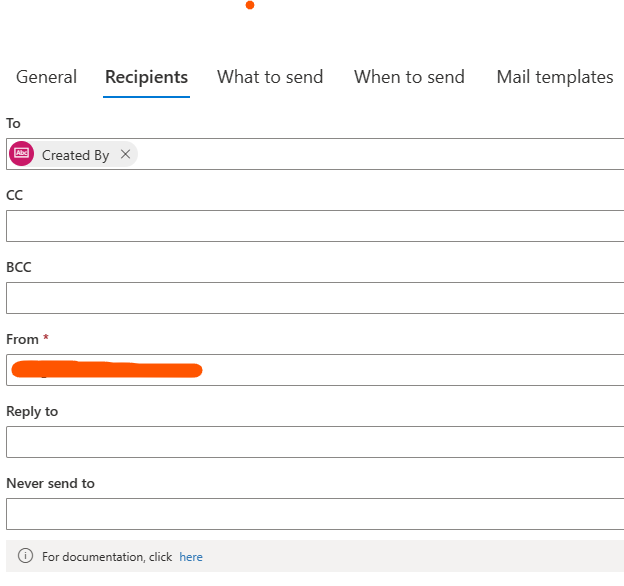
Configure the recipients and delivery schedule according to your requirements (such as immediate delivery).
-
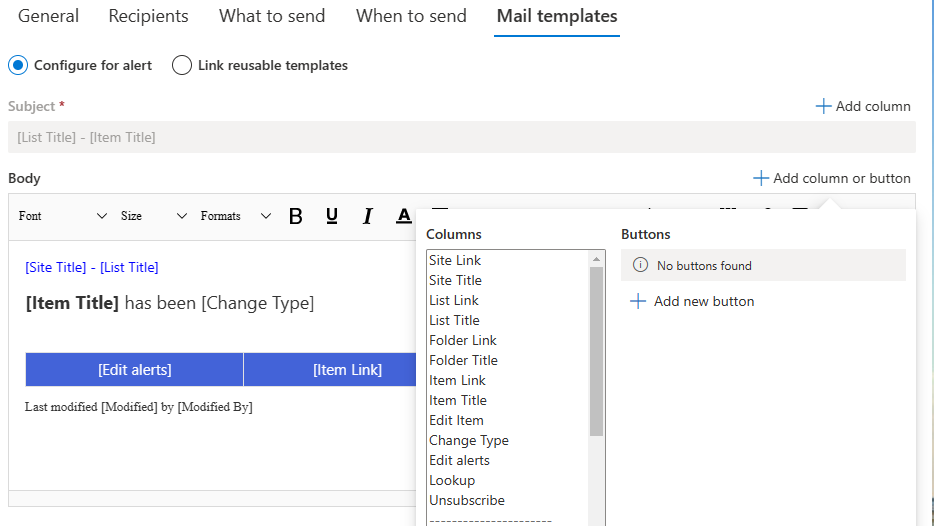
In the email template editor, enter the suitable email content. Next add new buttons.
-
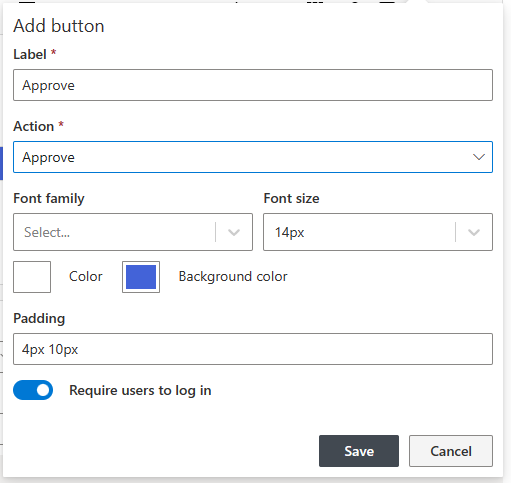
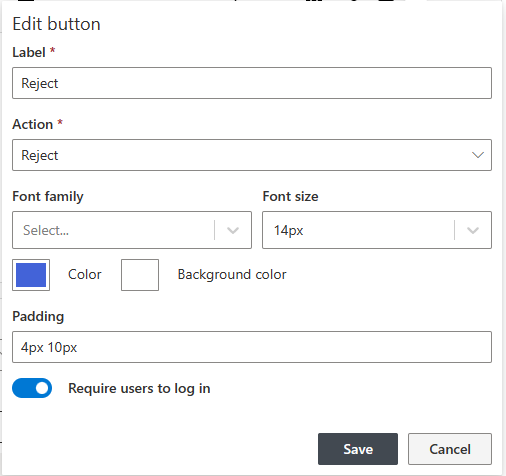
Assign each button to the corresponding Update Item action you created.
-
Insert the action buttons where appropriate within the email content.
Authentication Toggle
The Require users to log in setting determines whether users must be authenticated to trigger actions from the email:
-
Enabled (default): Only internal, authenticated users can execute actions.
-
Disabled: Useful when sending alerts to external recipients who are not part of your organization (for example, letting external users confirm appointments). The action will be executed anonymously.
Using the Action Buttons
When recipients receive the alert, they can click any of the configured buttons.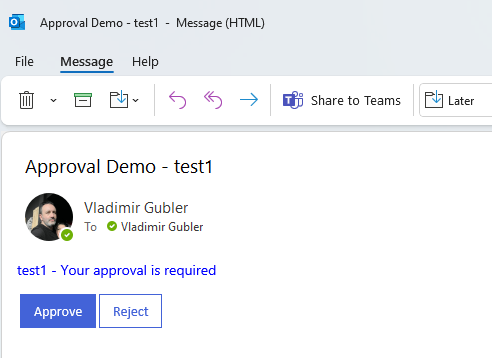
Clicking a button will:
-
Open a browser window showing the action execution progress. If the action contains parameters, an entry form will be presented prior to executing. The data entered in that form will be used for parameter values.
-
Update the corresponding item based on the triggered action (e.g., approval status).
Additional Notes
-
Any action or action group defined in the Actions module can be linked to email buttons, not just Update list item actions.
-
This includes actions executed inside SharePoint as well as integrations with external systems (permission management, site provisioning, third-party calls, etc.).
Add your comment



